

Lead Enrichment
Enhance your leads with comprehensive contact information, company details, and professional data—turning basic names into actionable sales profiles.
What is Lead Enrichment?
Lead Enrichment transforms incomplete lead records into detailed profiles by appending missing data from a B2B database. Instead of manually researching each prospect, enrichment automatically fills in emails, phone numbers, job titles, company details, social profiles, and more—in bulk.
Lead Enrichment provides:

Contact Discovery: Find email addresses and phone numbers for leads with incomplete contact info
Data De-Obfuscation: Remove obfuscation from names and emails
e.g., "J S" → "John Smith"

Social Profiles: Append LinkedIn URLs, other social links
if available
Bulk Processing: Enrich up to 100 leads per batch with parallel processing
- Professional Details: Job titles, seniority levels, employment history, skills
- Bulk Processing: Enrich up to 100 leads per batch with parallel processing
Each lead enrichment costs 0.075 quota and processes in 30-120 seconds depending on batch size.
Before You Begin
- Leads imported into your project (from Lead Search, manual import, or API)
- Sufficient quota (0.075 quota per lead enriched)
- Leads should have at least: name + company name, OR email, OR LinkedIn URL
Understanding Enrichment Data Sources
Lead enrichment queries the B2B Lead database using matching criteria:
Matching methods (priority order):
- B2B Leads Person ID: If lead was imported from Lead Search, uses unique ID (100% match accuracy)
- Email Address: Matches by email (90-95% accuracy)
- Name + Company: Matches by first name, last name, and company domain (70-80% accuracy)
Data appended to leads:
- Personal: Full name, email, phone, location, seniority level
- Professional: Current job title, employment history, skills
- Company: Organization name, domain, size, industry, revenue, technologies
- Social: LinkedIn URLs
- Additional: Education history, interests, bio
Note
Manual & imported leads: You can enrich leads from any source (Lead Search, manual import, or API). We use email or company when available.
Navigate to Leads List
From your dashboard, click Lead Generation in the sidebar, then click Leads in the submenu.
Loading image...
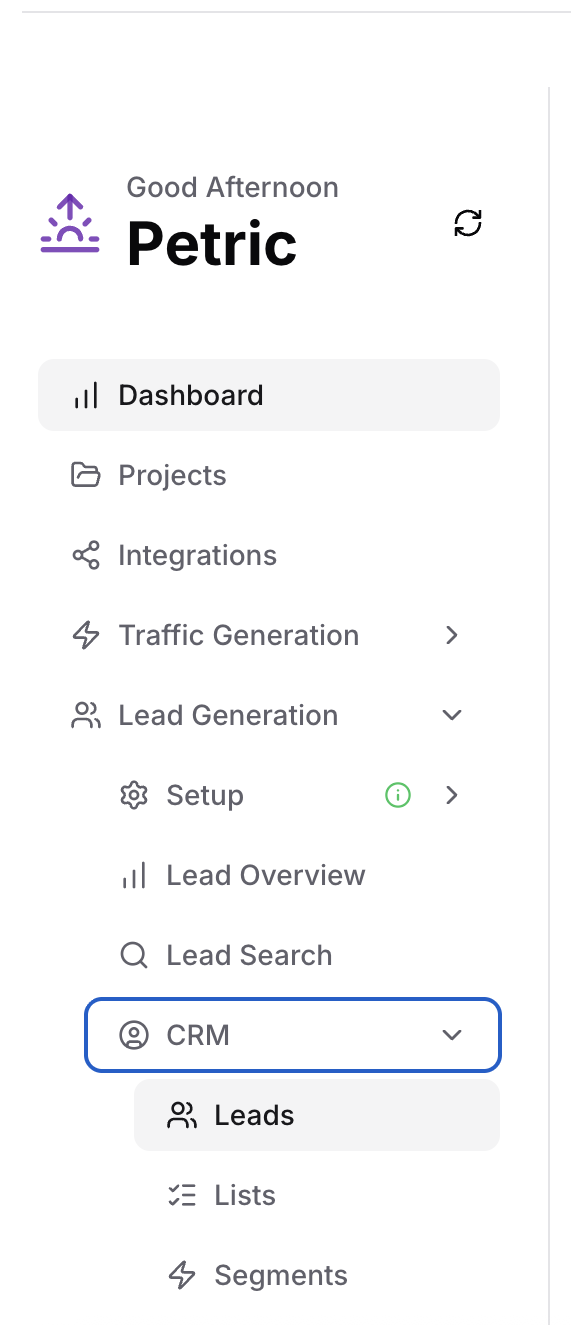
You'll see your complete leads list with options to filter, search, and select leads for enrichment.
Filter and Select Leads for Enrichment
Identify leads that need enrichment and select them.
Loading image...
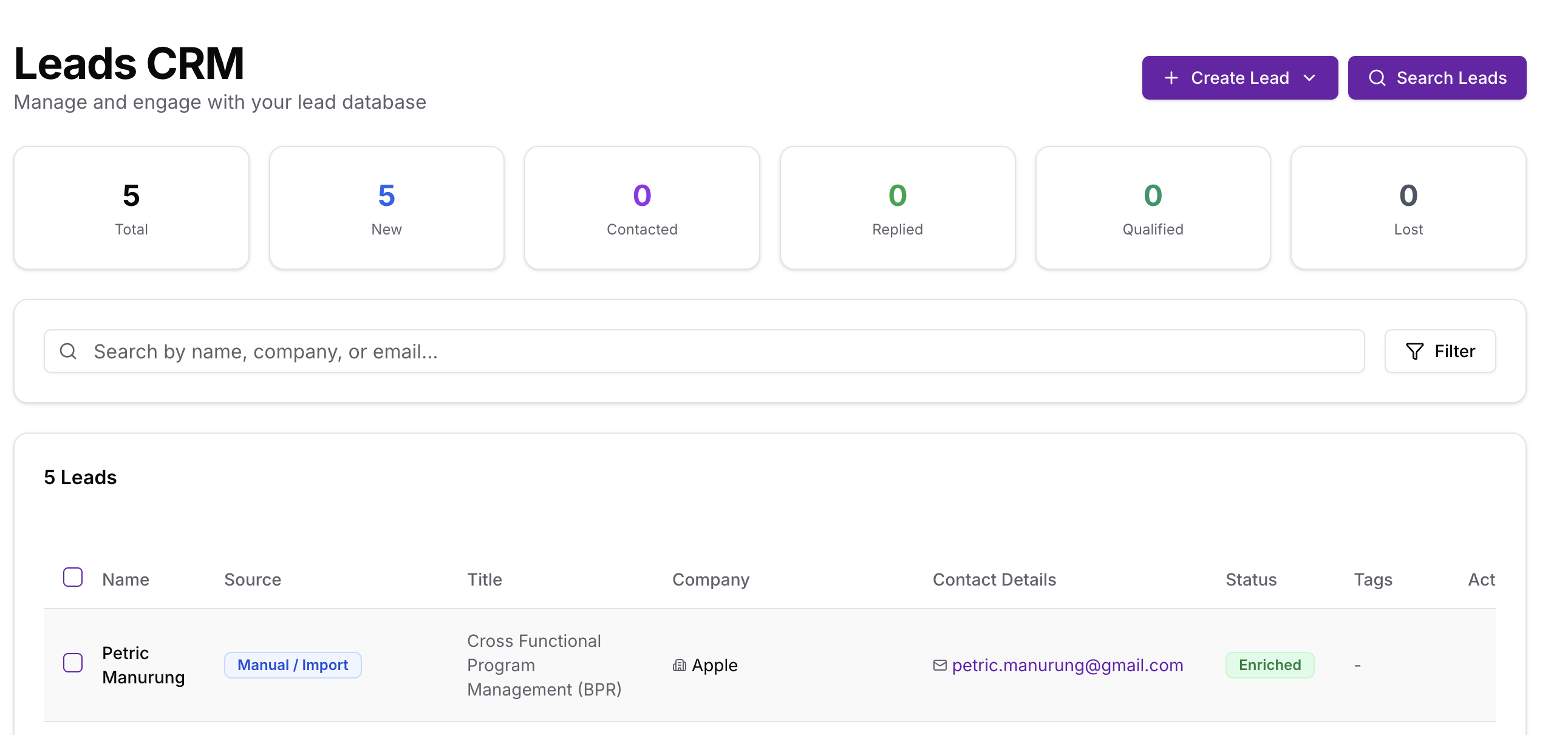
Filter by Enrichment Status
Use filters to find leads needing enrichment:
- All Leads: Show all leads regardless of enrichment status
- Not Enriched: Show only leads without enrichment data (primary target)
- Enriched: Show only leads with enrichment data already
Loading image...
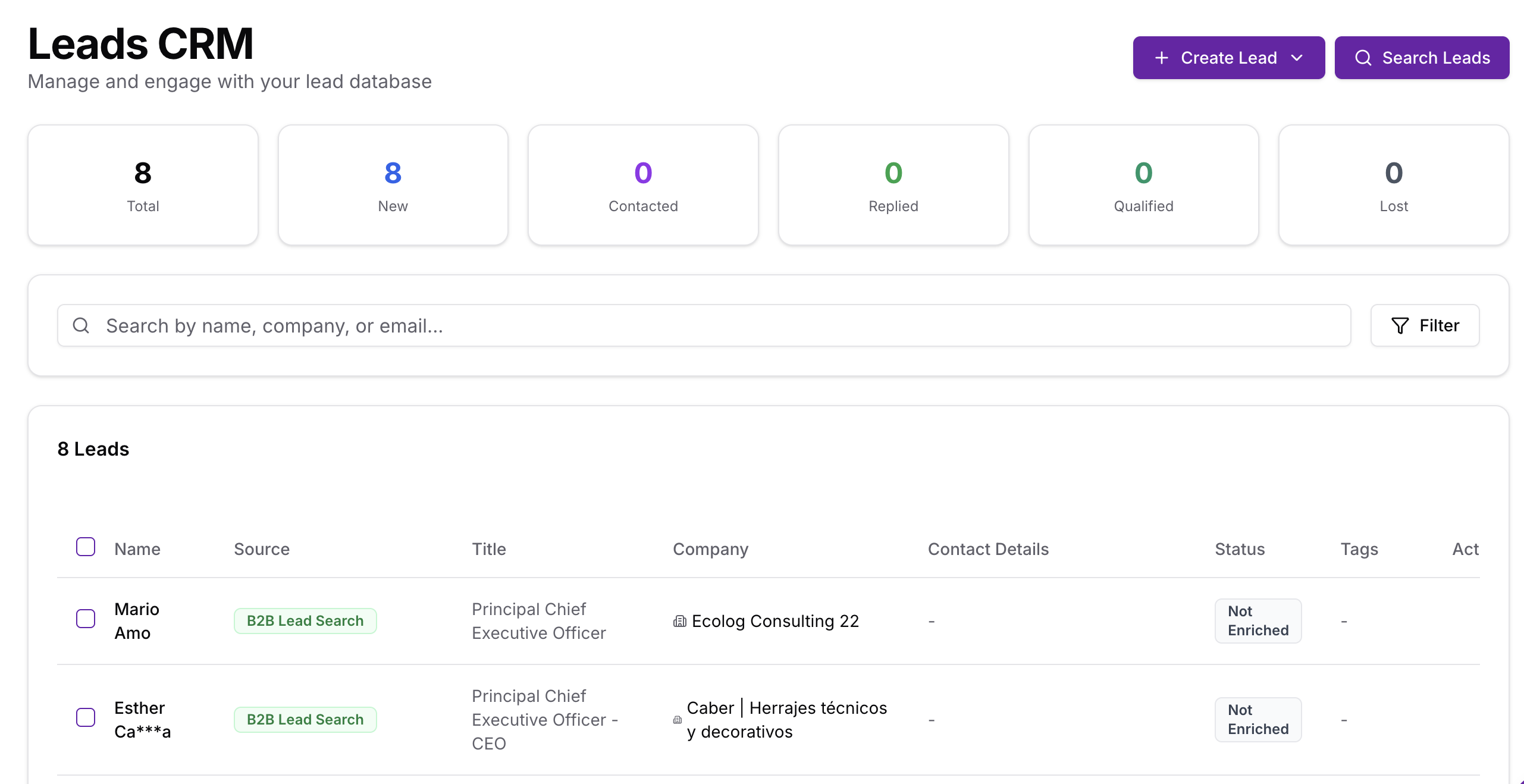
Additional Filters
Filter by status:
- New, Contacted, Replied, Qualified, Lost
Filter by source:
- B2B Leads (from Lead Search)
- Manual Import (CSV uploads)
- API Integration (Zapier, webhooks)
Search by:
- Name, company, email (text search)
Select Leads
To select leads for enrichment:
- Click checkboxes next to individual leads
- Or click "Select All" to select all on current page
- Or filter + select all to target specific groups
Loading image...
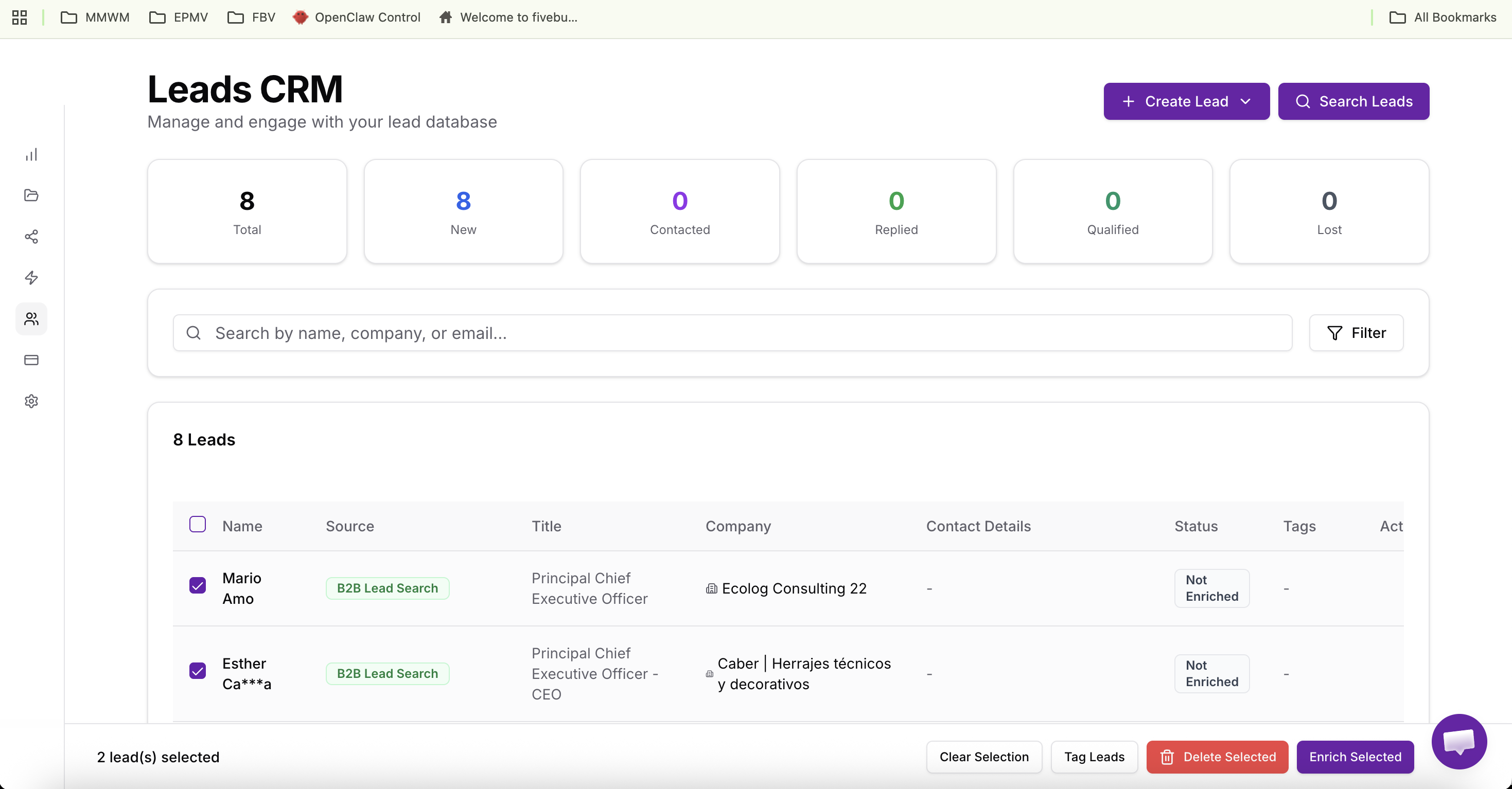
Selection constraints:
- Maximum: 100 leads per batch
- Auto-filtering: Already-enriched leads are filtered out
- Selection counter: Shows "X leads selected"
Pro Tip
Tag Leads
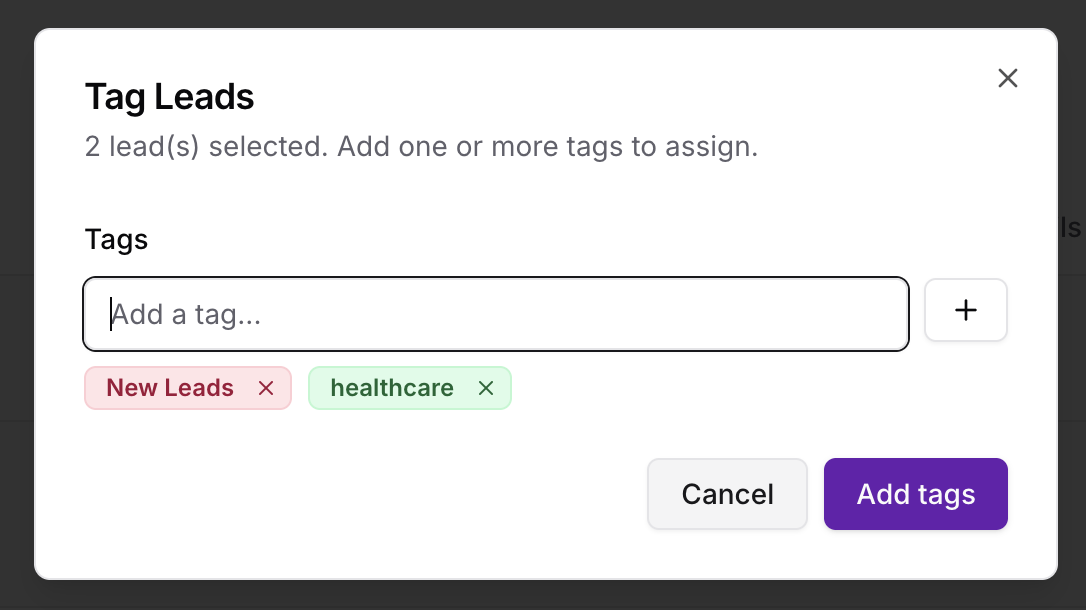
- Tag Leads: Select leads, click Tag Leads, add one or more tags in the dialog, and confirm to apply to all selected (max 100).
Loading image...
Review Quota Before Enriching
Before clicking "Enrich Selected", verify you have sufficient quota.
Loading image...
Quota information:
- Cost per lead: 0.075 quota
- Total cost: Selected leads × 0.075
- Quota warning: Red indicator if quota insufficient
Example calculations:
- 10 leads × 0.075 = 0.75 quota
- 50 leads × 0.075 = 3.75 quota
- 100 leads × 0.075 = 7.5 quota
Loading image...
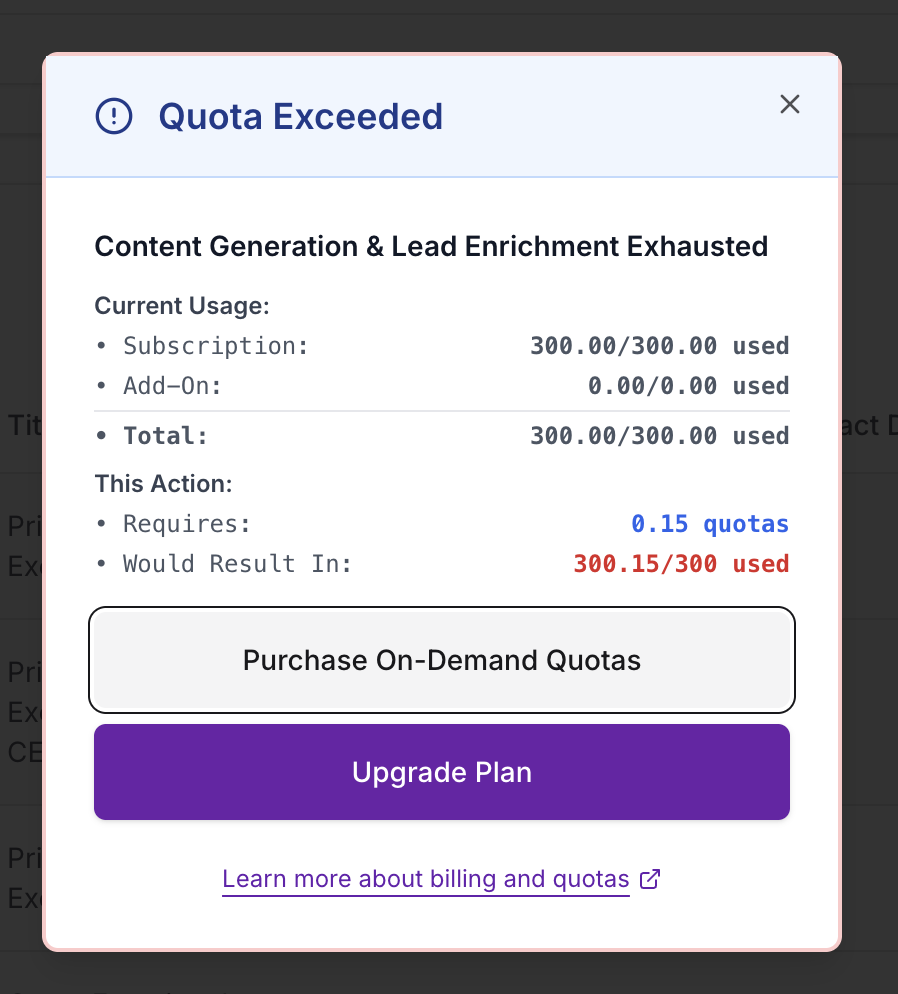
If quota insufficient:
- Reduce selection: Deselect some leads to lower cost
- Upgrade plan: Click "Upgrade Plan" for more quota
- Purchase add-on: Buy additional quota credits
- Wait for reset: Some plans have monthly quota resets
Note
Start Enrichment & Monitor Progress
Click "Enrich Selected" to start the background enrichment job.
Loading image...

Enrichment Processing
What happens:
- System validates selection and quota
- Filters out already-enriched leads
- For each lead:
Loading image...

Batch Processing Details
How batching works:
- All batches process simultaneously (parallel)
- Reduces total time vs. sequential processing
Pro Tip
View Enrichment Results
Once enrichment completes, review the results.
Success message shows:
- Enriched Count: Number of leads successfully enriched
- Failed Count: Number of leads that failed (no match found)
- Credits Consumed: B2B Lead API credits used (internal tracking)
Example:
- Selected: 50 leads
- Enriched: 45 leads (90% success rate)
- Failed: 5 leads (not found in database)
- Quota Used: 45 × 0.075 = 3.375 quota (only charged for successful)
Loading image...
Per-Lead Results
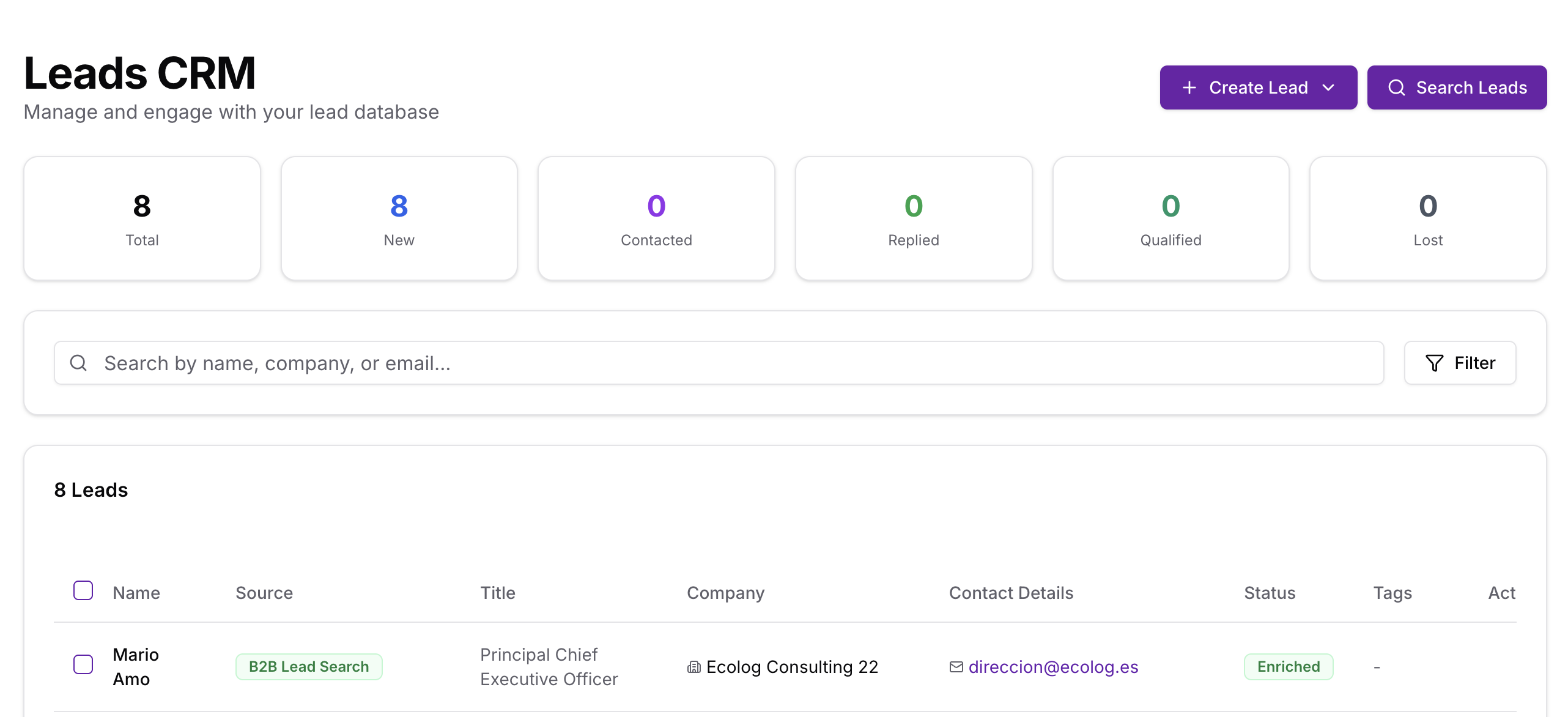
Each lead shows enrichment status:
- ✅ Success: Green badge, enriched data visible
- ❌ Failed: Red badge, hover for error message
- 🔄 Already Enriched: Gray badge, previously enriched
Explore Enriched Lead Data
Click on any enriched lead to view complete profile.
Enriched data sections:
1. Contact Information
- Email: Primary email address
- Phone: Primary phone number (with country code)
- Location: City, state, country
- Address: Full mailing address (if available)
2. Professional Information
- Job Title: Current position
- Seniority Level: C-Suite, VP, Director, Manager, Individual Contributor
- Department: Sales, Marketing, Engineering, Operations, etc.
- Employment Start Date: When they joined current company
3. Company Information
- Company Name: Full organization name
- Company Domain: Website domain (if available)
- Industry: Primary industry classification (if available)
- Company Size: Employee count range (if available)
- Revenue: Annual revenue estimate (if available)
4. Social Profiles
- LinkedIn: Profile URL (highest value for B2B outreach)
- Personal Website: Personal blog or portfolio
5. Additional Data
- Skills: Professional skills and expertise areas
- Interests: Professional interests and topics
- Employment History: Previous companies and roles
- Education: Degrees, schools, graduation years
- Bio: Short professional biography (from LinkedIn)
Note
Use Enriched Data in Campaigns
Enriched data becomes available for email personalization.
Personalization variables:
{{full_name}}→Full name{{first_name}}→ First name only{{email}}→ Enriched email address{{job_title}}→ Current position{{company_name}}→ Company name{{company_domain}}→ Company website{{linkedin_url}}→ LinkedIn profile URL{{location}}→ City, state
Example email using enriched data:
Subject: Quick question for {{company_name}}'s {{job_title}} Hi {{first_name}}, I noticed on your LinkedIn ({{linkedin_url}}) that you're the {{job_title}} at {{company_name}}. I work with companies in {{industry}} to [value proposition]...
Pro Tip
Filter by Enrichment Status
Organize your leads by enrichment status.
Loading image...
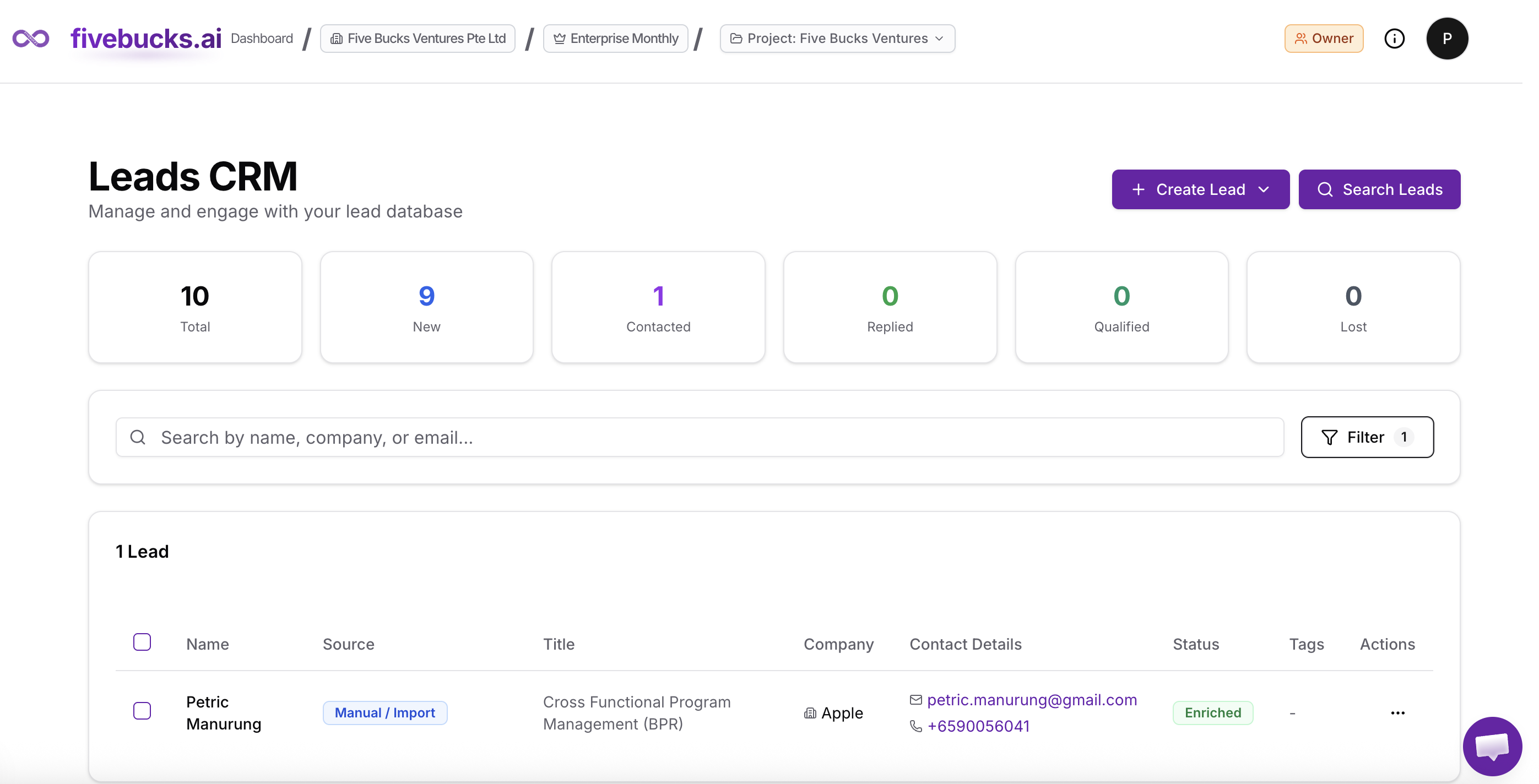
Filter options:
- All Leads: Show all regardless of enrichment
- Enriched Only: Show leads with enrichment data
- Not Enriched Only: Show leads without enrichment data
Use cases:
- Enriched Only: Build campaigns targeting leads with complete data
- Not Enriched Only: Identify leads that still need enrichment
- All Leads: Review full lead database
Troubleshooting
Enrichment Failed for Multiple Leads
Problem: Many leads failed enrichment
Causes & Solutions:
1. Insufficient input data
- Cause: Leads have only name, no company or email
- Solution: Add company names or domains before enriching
- Check: Review failed leads—do they have company info?
2. Company name misspellings
- Cause: "Gogle" vs. "Google", "FB" vs. "Facebook"
- Solution: Standardize company names (use full legal names)
- Tool: Use company name validation before import
3. Generic names
- Cause: "John Smith" at "ABC Inc." (too common, multiple matches)
Solution: Add more context
location, job title if available
Alternative: Use email or LinkedIn URL if available
Low Success Rate (<50%)
Problem: Enrichment completed but >50% failed
Diagnosis:
- Check input data quality
- Review lead sources
- Analyze failed lead patterns
Solutions:
- Clean data before import (normalize company names)
- Add domains during import (significantly improves matching)
- Focus on Lead Search for highest-quality imports
Enriched Data Seems Wrong
Problem: Enriched job title, company, or email doesn't match lead
Causes:
1. Wrong person matched
- Cause: "John Smith" at "ABC Inc." matched to different John Smith
- Solution: Verify by checking LinkedIn URL—if URL doesn't match expected person, data is wrong
2. Outdated data
- Cause: Person changed jobs but B2B Lead data not updated
- Solution: B2B Lead data can lag 30-90 days; re-enrich in 60 days
3. Common name collision
- Cause: Multiple people with same name at company
- Solution: Use email-based matching for disambiguation
Fix process:
- Manually correct the lead record
- Lock the lead (prevent future enrichment overwrites)
- Or delete enrichment data and re-enrich with better input (email or LinkedIn URL)
Enrichment Timeout (>120 seconds)
Problem: Enrichment job exceeds 120-second timeout
Causes:
1. Large batch size (80-100 leads)
- B2B Leads API can be slow for very large batches
- Solution: Reduce to 50 leads per batch
2. Network issues
- Solution: Check internet connection, retry