

Segments
Create dynamic lead groups that update automatically—always fresh, always current, no manual refresh required.
What are Segments?
Segments are dynamic lead groups that evaluate filter criteria in real-time on every query. Unlike static lists that freeze membership at creation, segments always reflect your current lead data—automatically updating as leads are added, enriched, or their status changes.
Segments provide:
- Live Evaluation: Membership recalculated on every view (always 100% current)
- Zero Storage Overhead: No membership records stored (filter criteria only)
- Automatic Updates: New leads matching criteria instantly appear
- Filter-Based Targeting: Build using status, source, job title, company, enrichment data
- Campaign Automation: Target segments in scheduled campaigns for auto-refreshing audiences
- No Size Limits: Scale to any audience size (performance-dependent)
Segments are ideal for behavior tracking, dynamic nurture campaigns, real-time dashboards, and any use case requiring always-fresh membership.
Before You Begin
- Leads imported into your project (from Lead Search, manual import, or API)
- Understanding of filter criteria (status, source, job title, company, enrichment data)
- Clear use case requiring dynamic membership (e.g., "All new leads", "Enriched leads not contacted")
Understanding Segments vs Lists
Before creating segments, understand the key architectural differences:
Segments (Dynamic)
How they work:
- Filter criteria are stored
- NO membership records stored (zero storage overhead)
- Member count calculated on demand
- Always returns current matching leads (100% fresh)
Performance characteristics:
- ⚠️ Slower loading (live query every time)
- ⚠️ Query overhead increases with filter complexity
- ⚠️ Performance degrades with 50,000+ total leads
Use cases:
- Behavior tracking: "All leads replied in last 7 days"
- Dynamic nurture: "Qualified leads not contacted" (auto-updates as leads contacted)
- Real-time dashboards: "New leads this month" (always current)
- Conditional targeting: "Enriched + has phone + not contacted"
- Automated campaigns: Scheduled campaigns with auto-refreshing audiences
Advantages:
- ✅ Always current (no stale data, no manual refresh)
- ✅ Automatic membership updates (new leads instantly appear)
- ✅ No size limit (scales with database performance)
- ✅ Filter changes take effect immediately
Limitations:
- ❌ Slower loading than lists (live query vs pre-computed)
- ❌ Performance degrades with very large lead databases
- ❌ Complex filters (10+ conditions) slow evaluation
Lists (Static)
How they work:
- Membership frozen at creation time
- Members are stored for the list
- Filter criteria stored but NOT auto-applied
- Manual refresh required to update membership
- Pre-computed membership for instant loading
Performance characteristics:
- ✅ Fast loading (pre-computed memberships)
- ✅ No query overhead (direct membership lookup)
- ❌ Stale data (membership doesn't auto-update)
Use cases:
- One-time campaigns: "Black Friday Promo Q4 2024" (stable audience)
- Curated groups: "VIP Enterprise Prospects" (manual oversight)
- Export targets: "Leads for Sales Navigator import" (frozen snapshot)
- A/B testing: "Test Group A" vs "Test Group B" (no mid-campaign changes)
Advantages:
- ✅ Instant loading (pre-computed)
- ✅ Stable membership (doesn't change mid-campaign)
- ✅ Manual control (add/remove specific leads)
- ✅ Export-friendly (static snapshot)
Limitations:
- ❌ Stale data (requires manual refresh)
- ❌ Storage overhead (membership records)
When to Use Segments vs Lists
Use Segments when:
- ✅ Need always-current membership ("show me today's new leads")
- ✅ Tracking behavior over time ("replied leads", "contacted but not replied")
- ✅ Running ongoing nurture campaigns (audience updates automatically)
- ✅ Building real-time dashboards (counts always accurate)
- ✅ Complex conditional logic ("enriched AND contacted AND not replied within 7 days")
- ✅ Audience size changes frequently (new leads daily)
Use Lists when:
- ✅ Running one-time campaign (stable audience prevents duplicate sends)
- ✅ Need instant performance
- ✅ Exporting to external tools (need frozen snapshot)
- ✅ Manual oversight required (QA before campaign)
- ✅ Need to add/remove specific leads (override filters)
Hybrid approach:
- Explore with segments: Test filters and refine criteria (always see current results)
- Convert to list for campaign: Freeze audience for stable targeting
- Export before sending: Backup snapshot for audit trail
Pro Tip
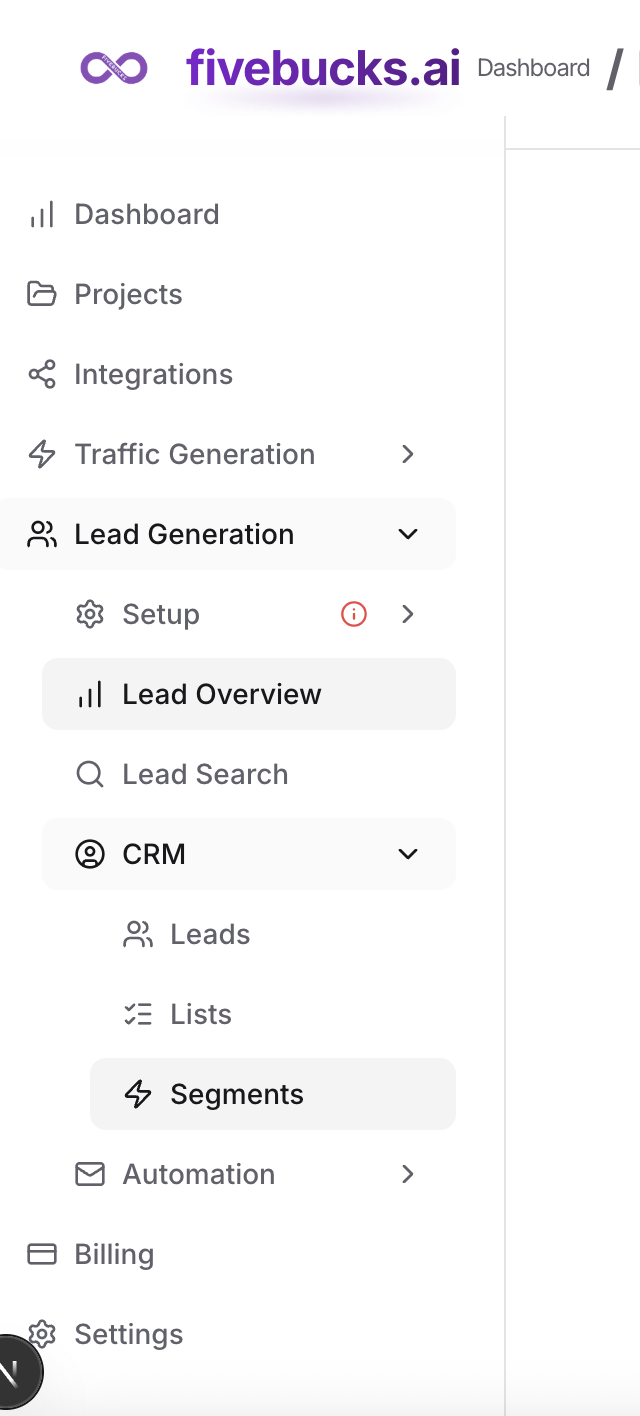
Navigate to Segments
From your dashboard, click Lead Generation in the sidebar, then click Segments in the submenu.
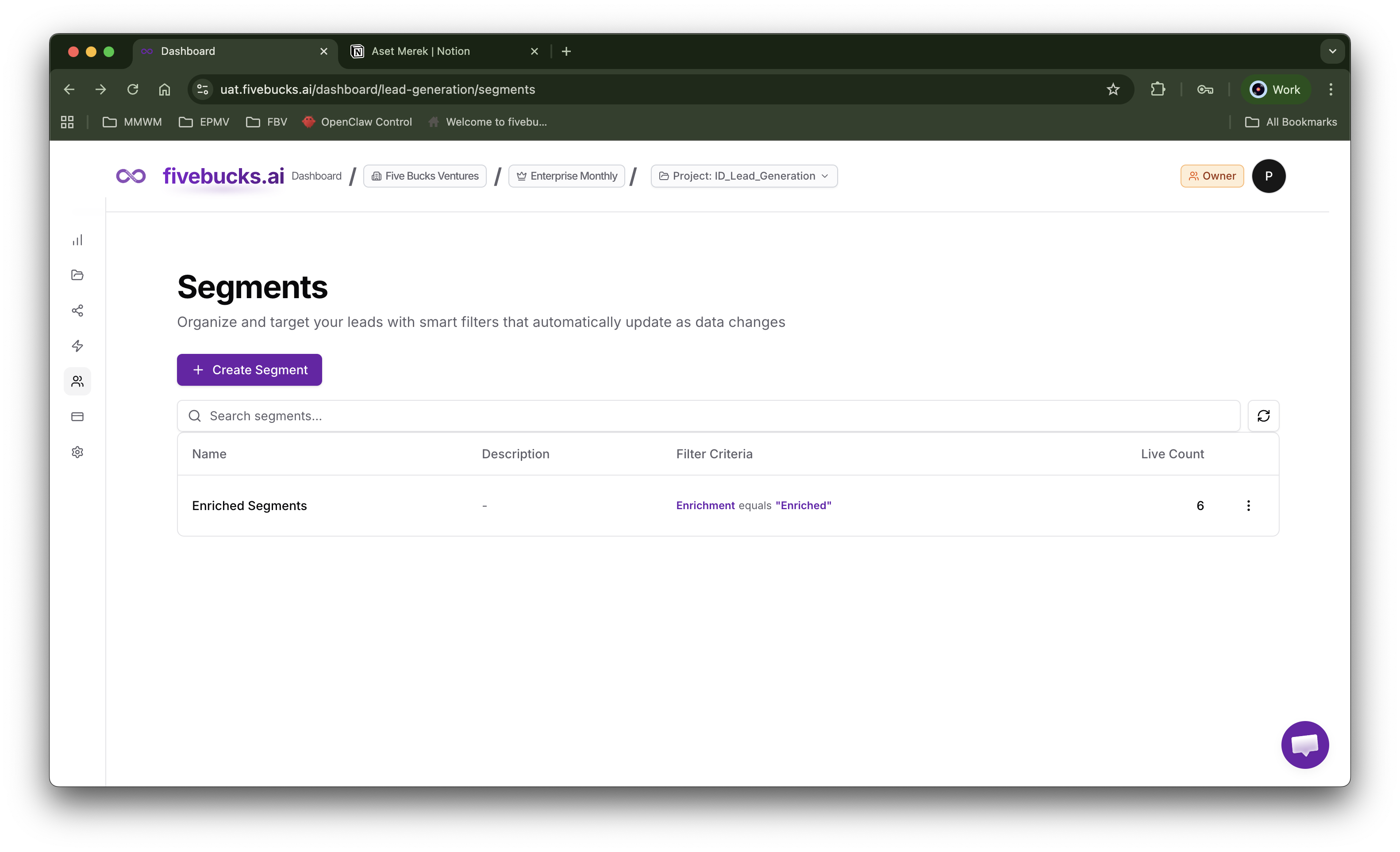
Loading image...
You'll see your existing segments with live member counts (recalculated on page load).
Create a New Segment
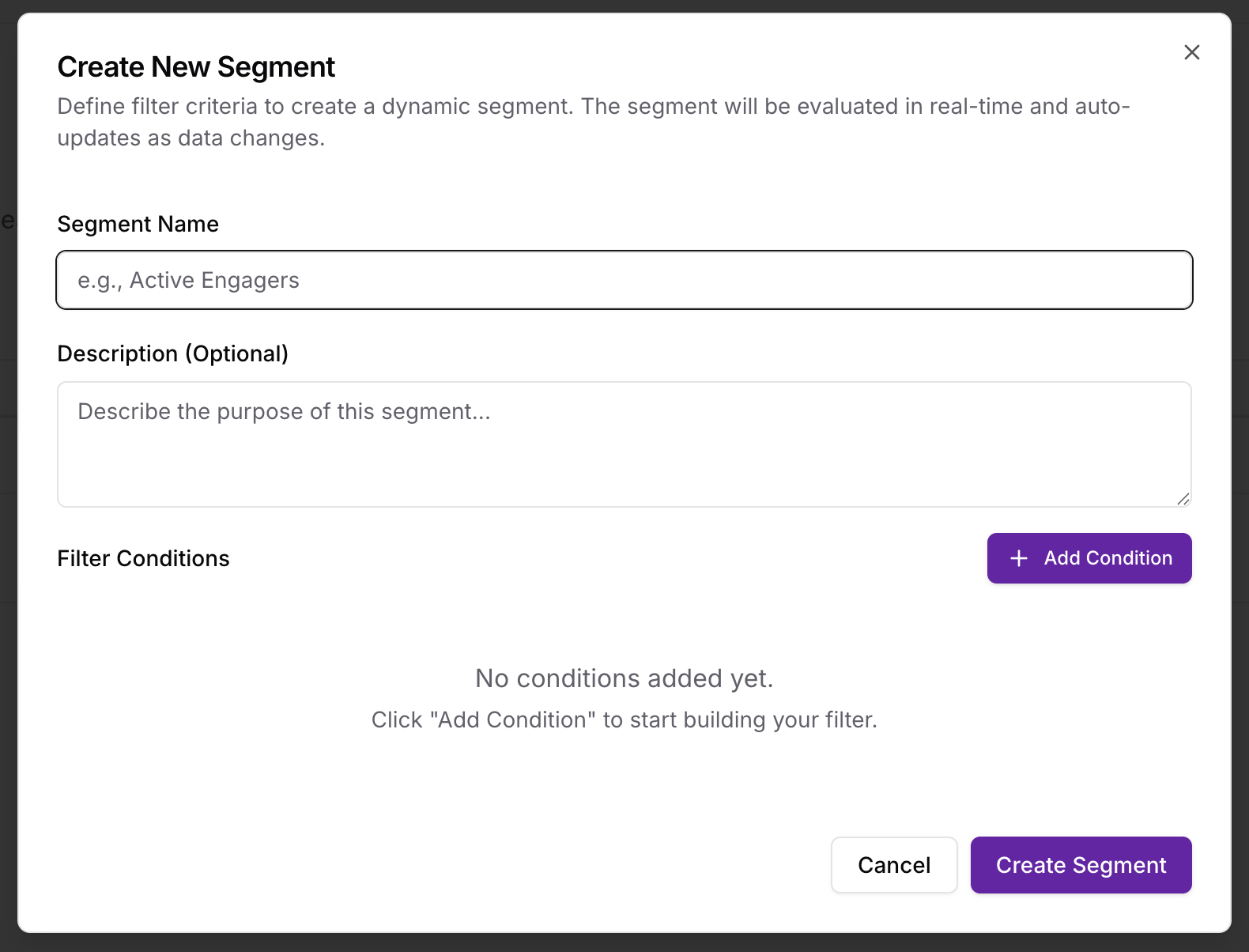
Click the "Create Segment" button to open the creation dialog.
Loading image...
Segment Creation Form
Required fields:
- Segment Name: Descriptive name (max 255 characters)
- Filter Criteria: At least one filter condition
Optional fields:
- Description: Explain segment purpose (max 500 characters)
Loading image...
Build Filter Criteria
Use the filter builder to create dynamic targeting rules.
Loading image...
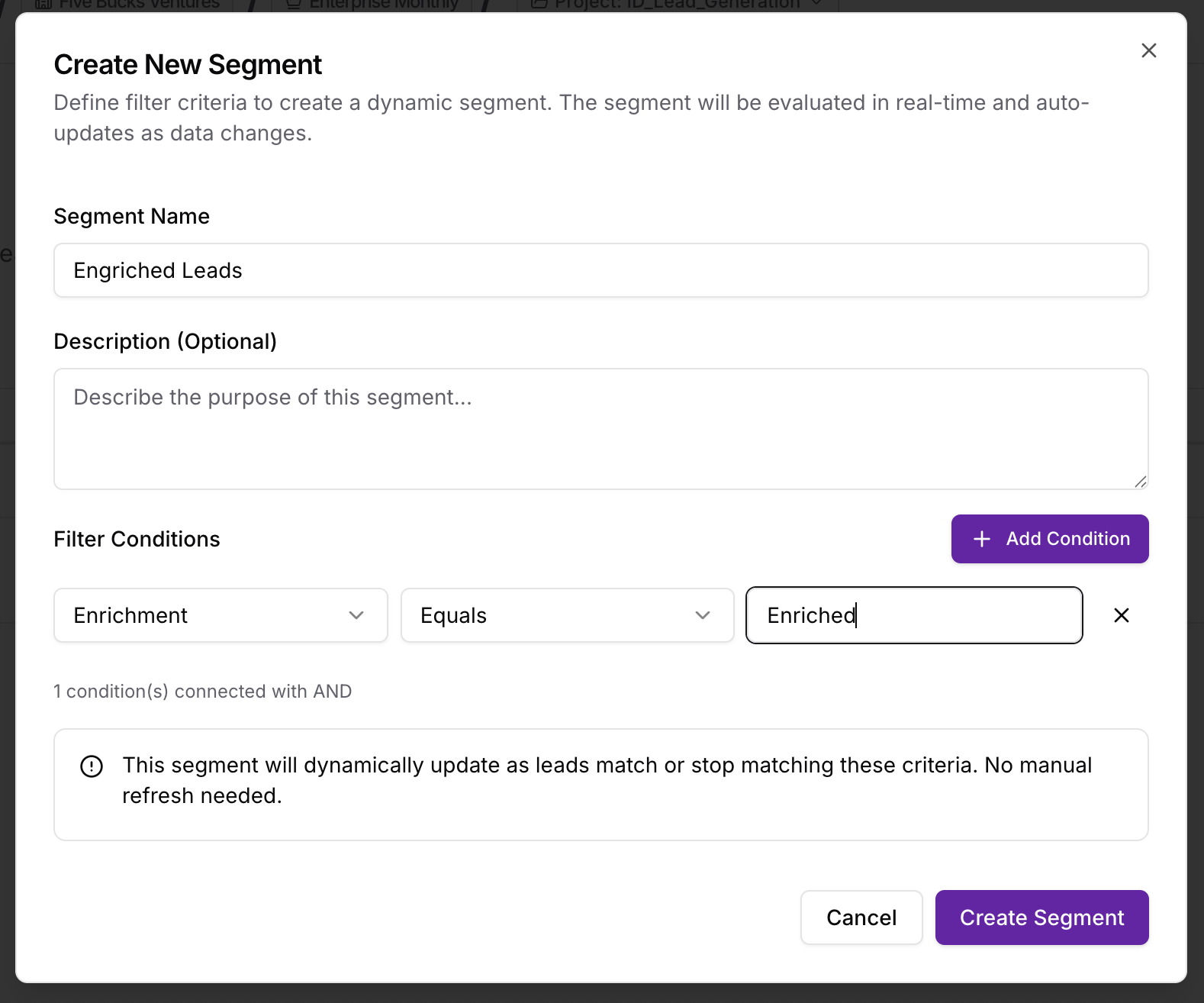
Filter Builder Interface
Add conditions:
- Click "Add Filter" to add conditions
- Multiple conditions use AND logic by default (all must match)
- Each filter shows live preview count ("X leads match")
- Counts update in real-time as you adjust filters
Available Filter Types
1. Status Filter
- Values: New, Contacted, Replied, Qualified, Lost
- Multi-select: Choose multiple statuses (OR logic within filter)
- Example:
Status = New OR Contacted
2. Source Filter
- Values: Apollo Search, Manual Import, API Integration
- Multi-select: Choose multiple sources
- Example:
Source = Apollo Search
3. Job Title Filter
- Type: Text search (case-insensitive)
- Matches: Partial match ("CEO" matches "VP & CEO")
- Example:
Job Title contains "CEO" OR "Founder"
4. Company Name Filter
- Type: Text search (case-insensitive)
- Matches: Partial match
- Example:
Company Name contains "Google"
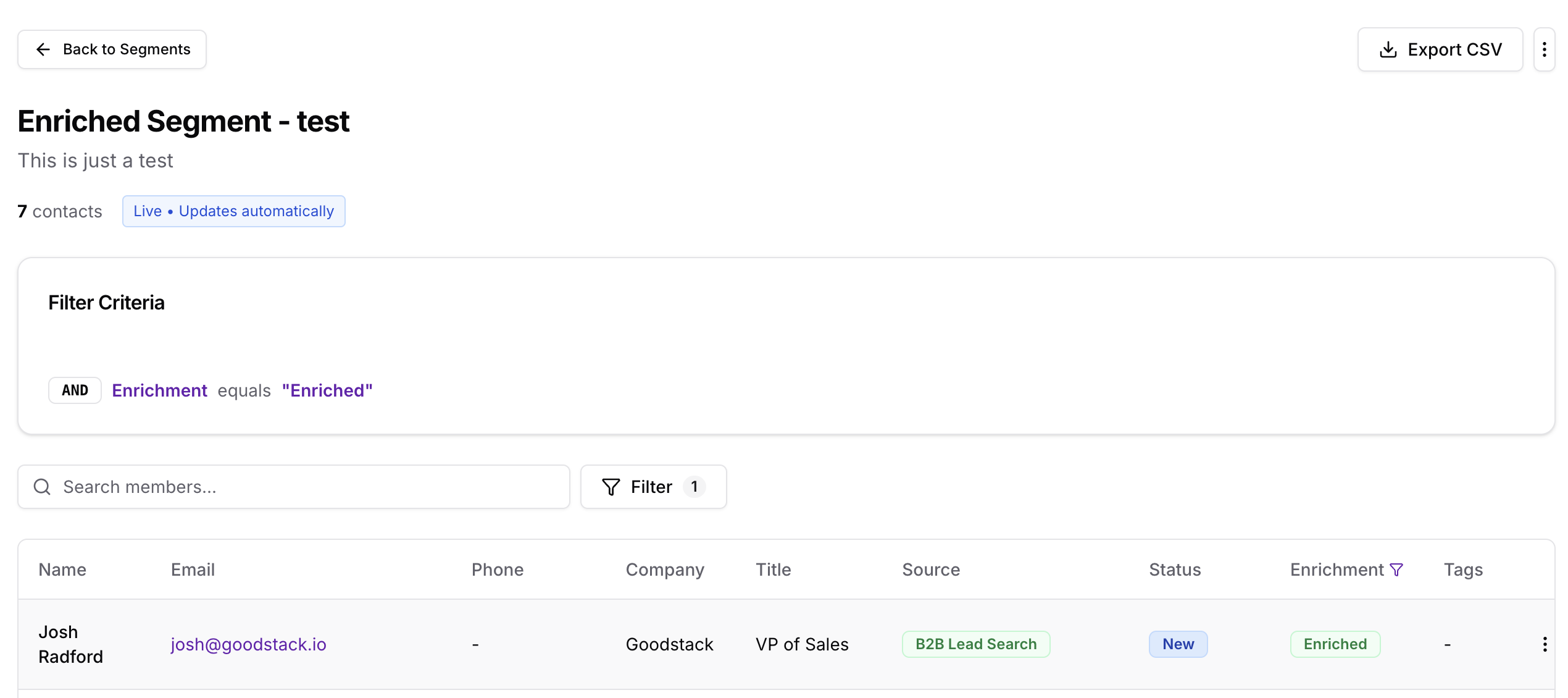
5. Enrichment Status Filter
- Values: Enriched (has enrichment_data), Not Enriched (no enrichment_data)
- Example:
Enrichment Status = Enriched
6. Enrichment Data Filters
Loading image...
Query enriched lead data using JSONB operators:
Company Size:
company.size >= 50(50+ employees)company.size BETWEEN 10 AND 100(small-medium companies)
Industry:
company.industry = "Technology"company.industry IN ["SaaS", "Software"]
Revenue:
company.revenue >= 1000000($1M+ annual revenue)
Technologies:
company.technologies @> ["Salesforce", "HubSpot"](uses both)company.technologies && ["React", "Vue"](uses any of)
Seniority:
person.seniority_level = "C-Suite"person.seniority_level IN ["VP", "Director"]
Location:
person.location.country= "United States"person.location.city= "San Francisco"
Note
7. Custom Field Filters
- Query any custom fields you've added to leads
- Supports text, number, date, boolean types
Filter Logic Modes
AND Logic (default):
- All conditions must match
- Example:
Status = NewANDEnrichment Status = Enriched(leads must be both new AND enriched)
OR Logic (advanced):
- Any condition can match
- Example:
Status = NewORStatus = Contacted(leads can be either new OR contacted)
Complex Combinations:
- Group filters with parentheses
- Example:
(Status = New OR Contacted) AND (Job Title = CEO) AND (Company Size >= 50)
Common Segment Patterns
Pattern 1: New enriched leads ready for outreach
Status = New Enrichment Status = Enriched company.size >= 10 person.email IS NOT NULL
Pattern 2: Cold leads needing re-engagement
Status = Contacted Last Contact Date < 30 days ago Replied = false
Pattern 3: High-value prospects (enterprise)
Job Title contains "CEO" OR "VP" OR "Director" company.size >= 100 company.revenue >= 5000000 Status = New OR Contacted
Pattern 4: Technology-specific targeting
company.technologies @> ["Salesforce"] company.industry = "SaaS" Status = New
Pattern 5: Geographic targeting
person.location.country = "United States" person.location.state IN ["CA", "NY", "TX"] Enrichment Status = Enriched
Preview Segment Count
Before creating the segment, preview how many leads currently match.
Loading image...
Live Count Preview
How it works:
- Click "Calculate Count" or count auto-updates as you adjust filters
- System counts matching leads in real time
- Returns total matching leads (no lead data fetched)
- Count reflects current database state (100% accurate)
Preview information:
- Match Count: "X leads match your filters"
- Sample Leads: First 5 matching leads shown (preview only)
- Performance Warning: If count >10,000, shows "Large segment - consider using list for better performance"
Adjust filters based on count:
- Too few matches (<10): Loosen filters (remove conditions, use OR logic)
- Too many matches (>1,000): Tighten filters (add conditions, narrow criteria)
- Optimal range (10-500): Best performance for segments
Pro Tip
Complete Segment Creation
Click "Create Segment" to finalize.
What happens:
- System validates filter criteria structure
- Creates the segment
- Stores your filter criteria (no memberships created)
- Calculates initial member count (live query)
- Returns segment with current count
Success message shows:
- "Segment created successfully with X members"
- Segment appears in segments list immediately
- Member count is live (will auto-update as leads change)
Note
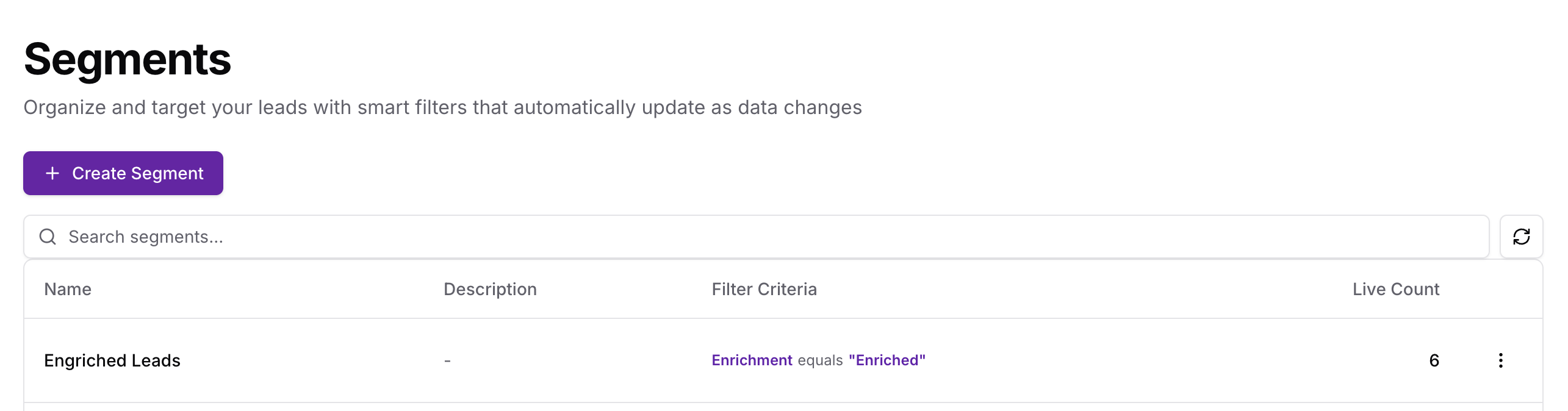
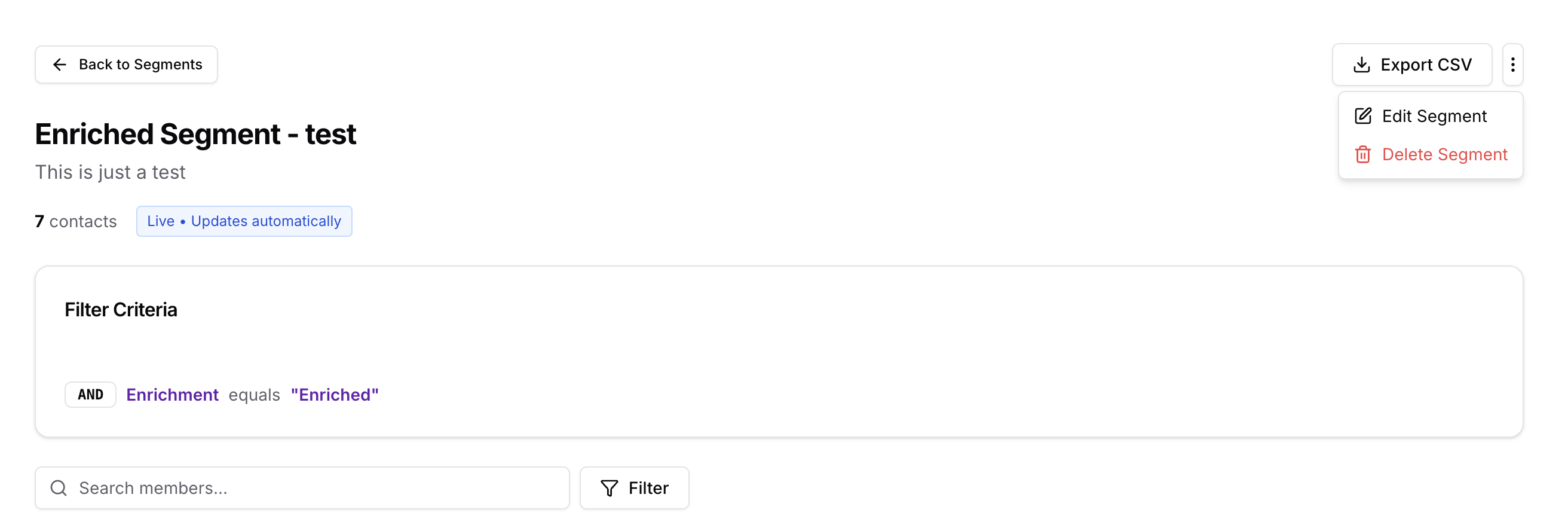
View Segment Members
Click on any segment to view current matching leads.
Loading image...
Segment detail page shows:
Header Section
- Segment Name
- Description
- Member Count: Live count (recalculated on page load)
- Created Date: When segment was originally created
- Created By: User who created the segment
- Last Evaluated: Timestamp of last query (updates every view)
Actions Bar
- View Members: See matching leads (live evaluation)
- Edit Segment: Update name, description, or filters
- Convert to List: Create static list from current members
- Export Members: Download current members as CSV
- Delete Segment: Permanently delete segment
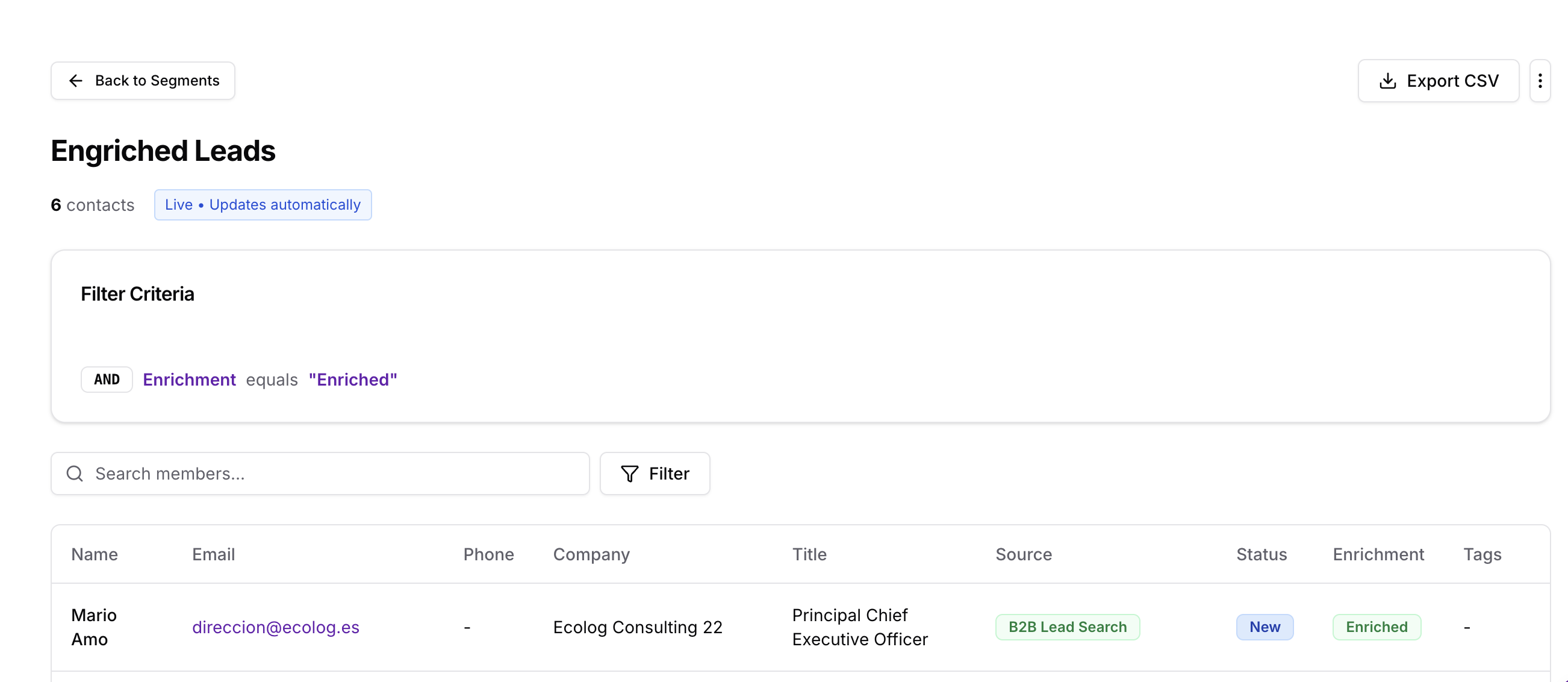
Members Table (Live)
Loading image...
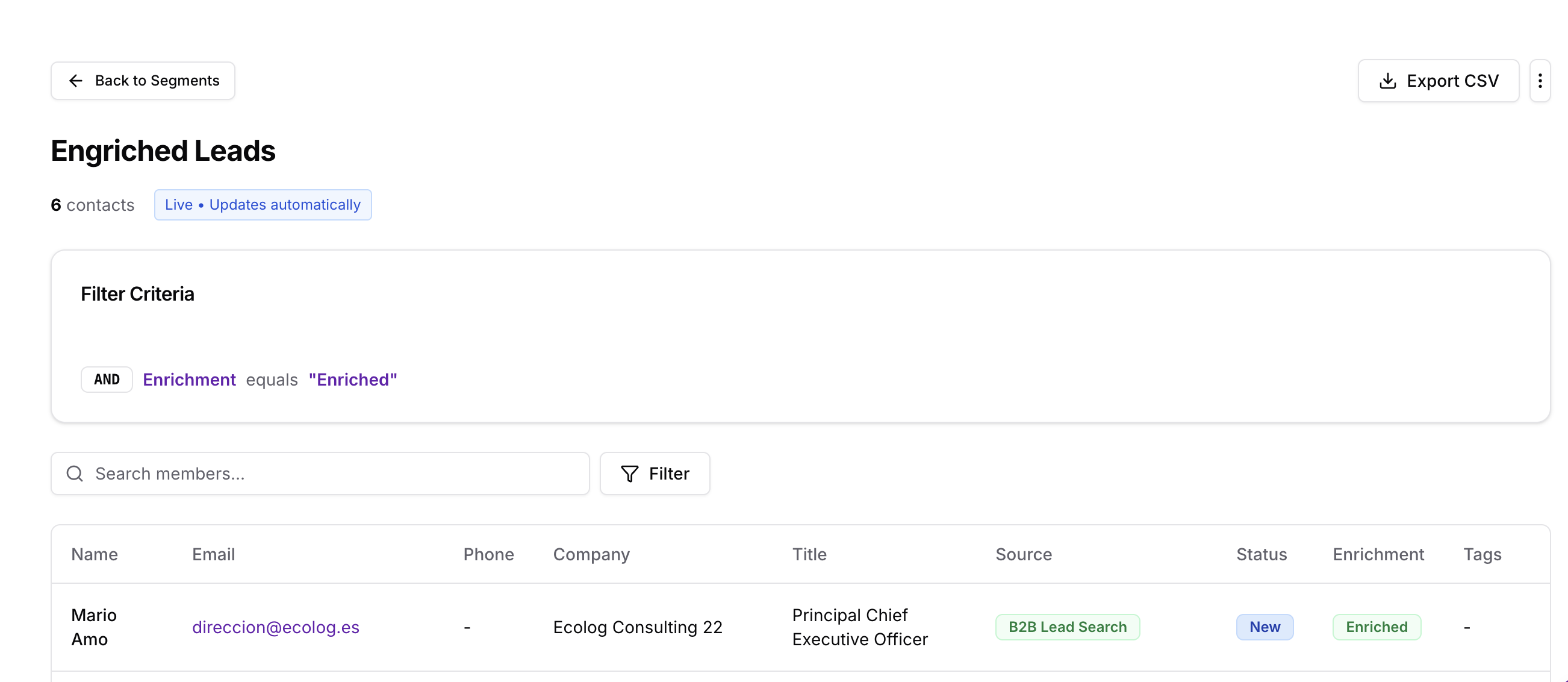
Live evaluation:
- Table shows leads matching filter criteria RIGHT NOW
- Refresh page to see updated membership (new leads, status changes, enrichments)
- No stored memberships—every query is fresh
Table features:
- Columns: Name, Email, Company, Job Title, Status, Source, Enrichment Status
- Pagination: Navigate through members (50 per page)
- Search: Filter visible members by name/email/company
- Sort: Click column headers to sort
- Export: Download current members as CSV
Performance notes:
- Small segments (<500): Instant loading
- Medium segments (500-2,000): 1-2 second load time
- Large segments (2,000-10,000): 3-5 second load time
- Very large (>10,000): 5-10+ seconds (consider converting to list)
Edit Segment
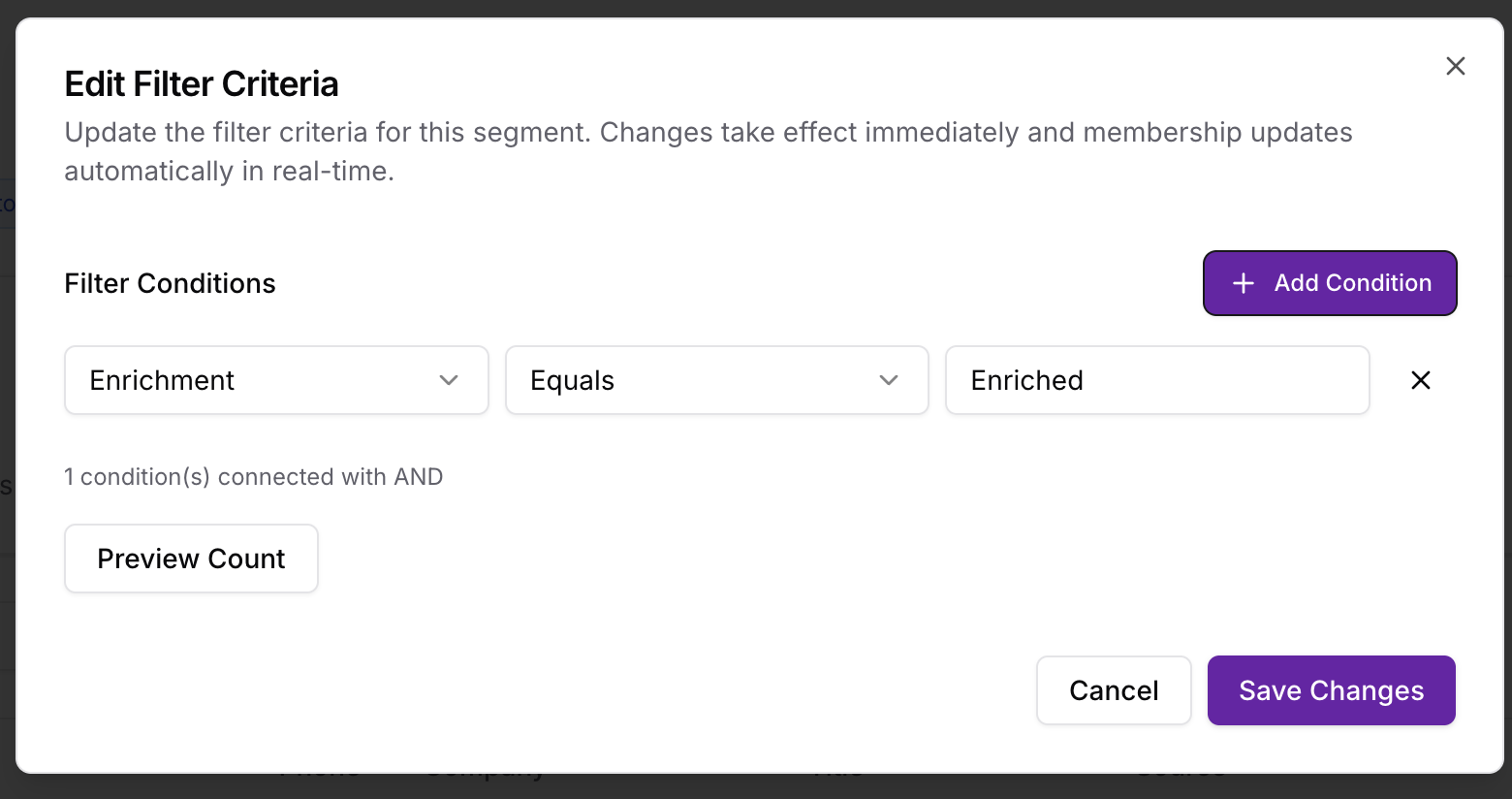
Update segment filters to change membership.
Loading image...
Editable Fields
Name: Update segment name
- Example: "New Leads" → "New Enriched Leads - Ready for Outreach"
Description: Update segment purpose or notes
- Example: Add campaign context, notes, or targeting strategy
Filter Criteria: Modify filters
- Add new conditions
- Remove existing conditions
- Change filter values
- Adjust filter logic (AND/OR)
Loading image...
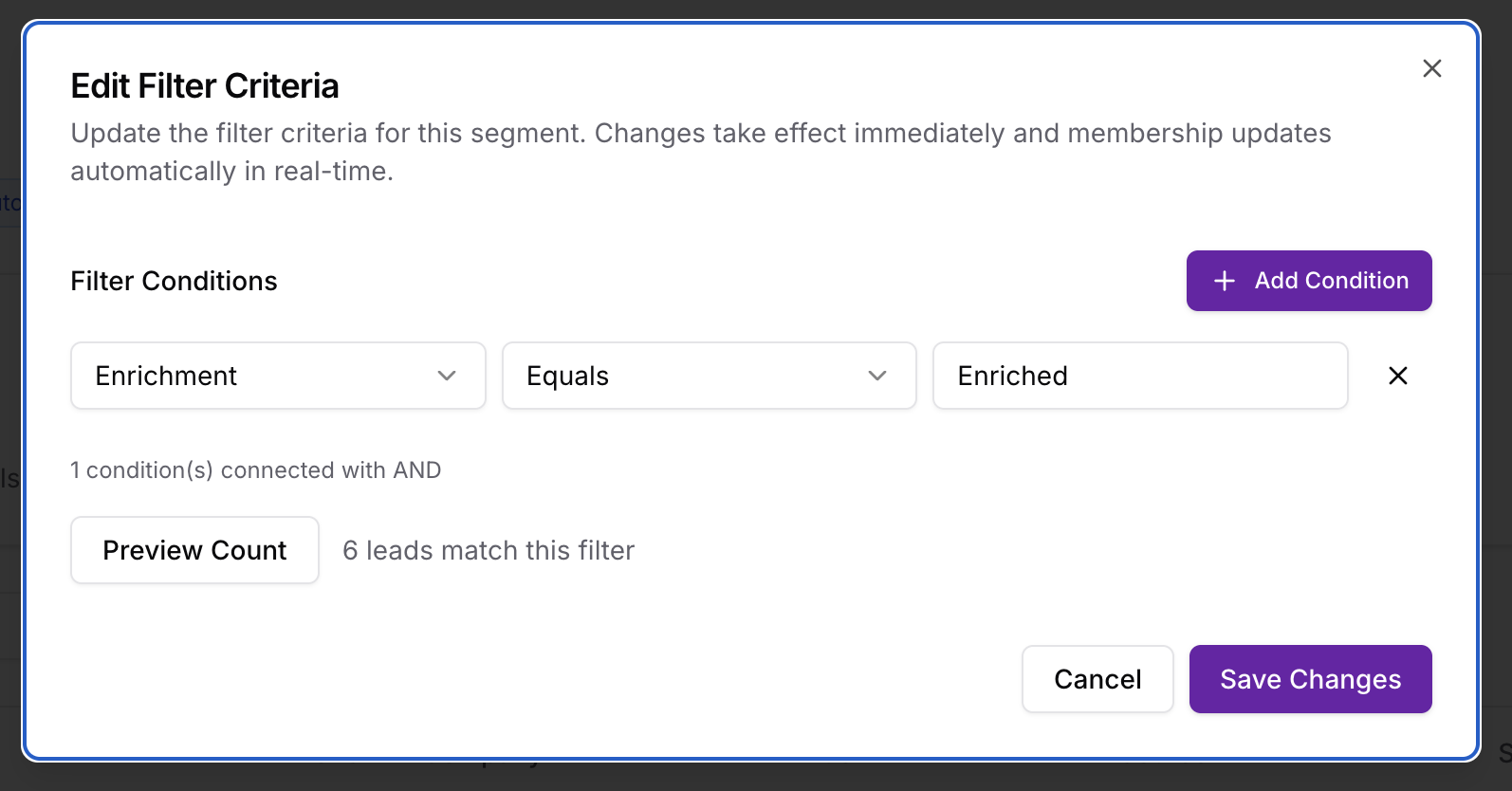
Immediate Effect
Key difference from lists:
- ✅ Filter changes take effect IMMEDIATELY (no manual refresh required)
- ✅ Member count updates as you adjust filters
- ✅ Next query returns new matching leads
Example:
- Original filter:
Status = New - Edit to:
Status = New OR Contacted - Save changes
- Result: Member count instantly increases to include contacted leads
Preview before saving:
- Filter builder shows live count as you adjust
- Review new member count before clicking "Save Changes"
- Compare old vs new count ("125 → 287 members")
Loading image...
Export Segment Members
Download current matching leads as CSV.
Where: On the segment detail page (when you open a single segment), use the Export CSV button in the header (next to "Back to Segments").
Button behavior:
- Label: "Export CSV" on desktop, "Export" on mobile.
- Disabled when: The segment has 0 members.
What it does: Fetches current segment members (live evaluation, up to 10,000), builds a CSV with these columns, and triggers a file download.
CSV columns: Name, Email, Phone, Company, Job Title, Source, Status.
Limit: Up to 10,000 members per export.
Filename: {segment_name}_export.csv (special characters in the segment name are replaced with underscores).
Messages: Success — "Exported {{count}} members to CSV."; Error — "Failed to export segment members." (or the API error message).
This matches the Export CSV behavior on the List detail page.
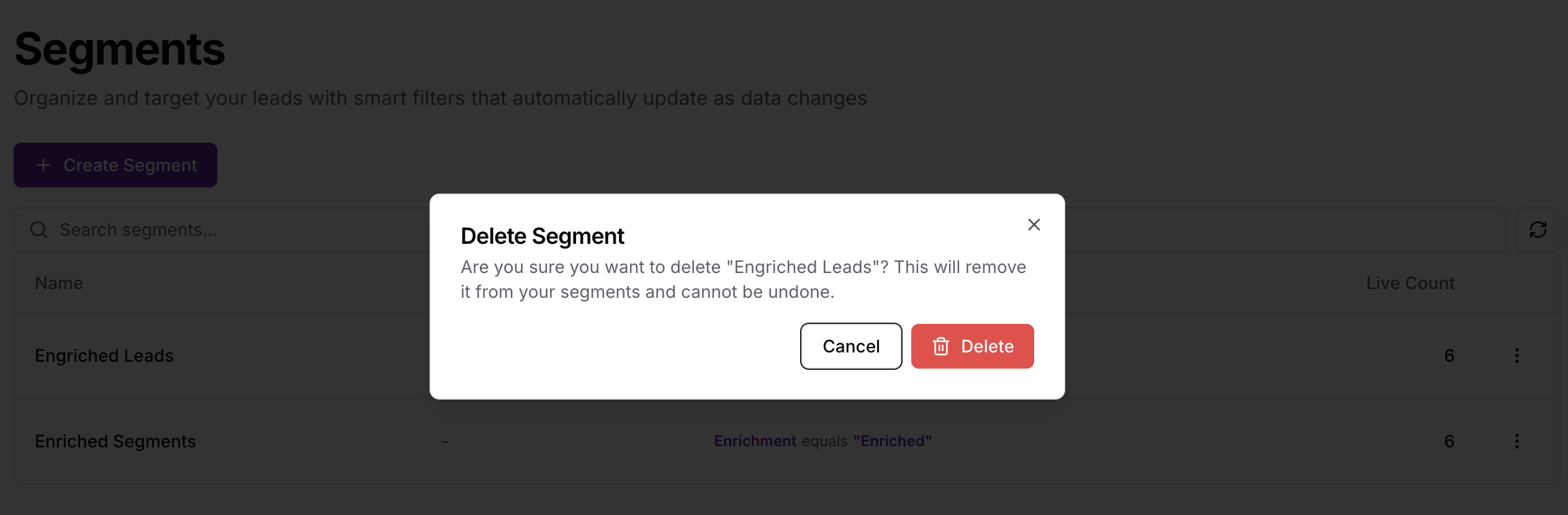
Delete a Segment
Permanently delete a segment.
Loading image...
When to Delete Segments
Scenarios:
- Campaign complete: Dynamic segment no longer needed
- Obsolete filters: Filter criteria no longer relevant
- Test segments: Removing test/sandbox segments
- Consolidation: Merging multiple segments into one
Delete Process
Steps:
- Click "Delete" button (in segment detail or segments table)
- Confirm deletion in dialog
- Segment permanently deleted
Warning message:
- "This action cannot be undone."
- "Filter criteria will be permanently deleted."
- "Leads themselves will NOT be deleted (only the segment definition)."
- "If segment is used in active campaigns, those campaigns will need updating."
What happens:
- Segment is deleted
- No memberships to delete (segments have no stored memberships)
- Leads remain in your project (only segment definition deleted)
- Campaigns using this segment will show error (target audience missing)
Using Segments in Automated Campaigns
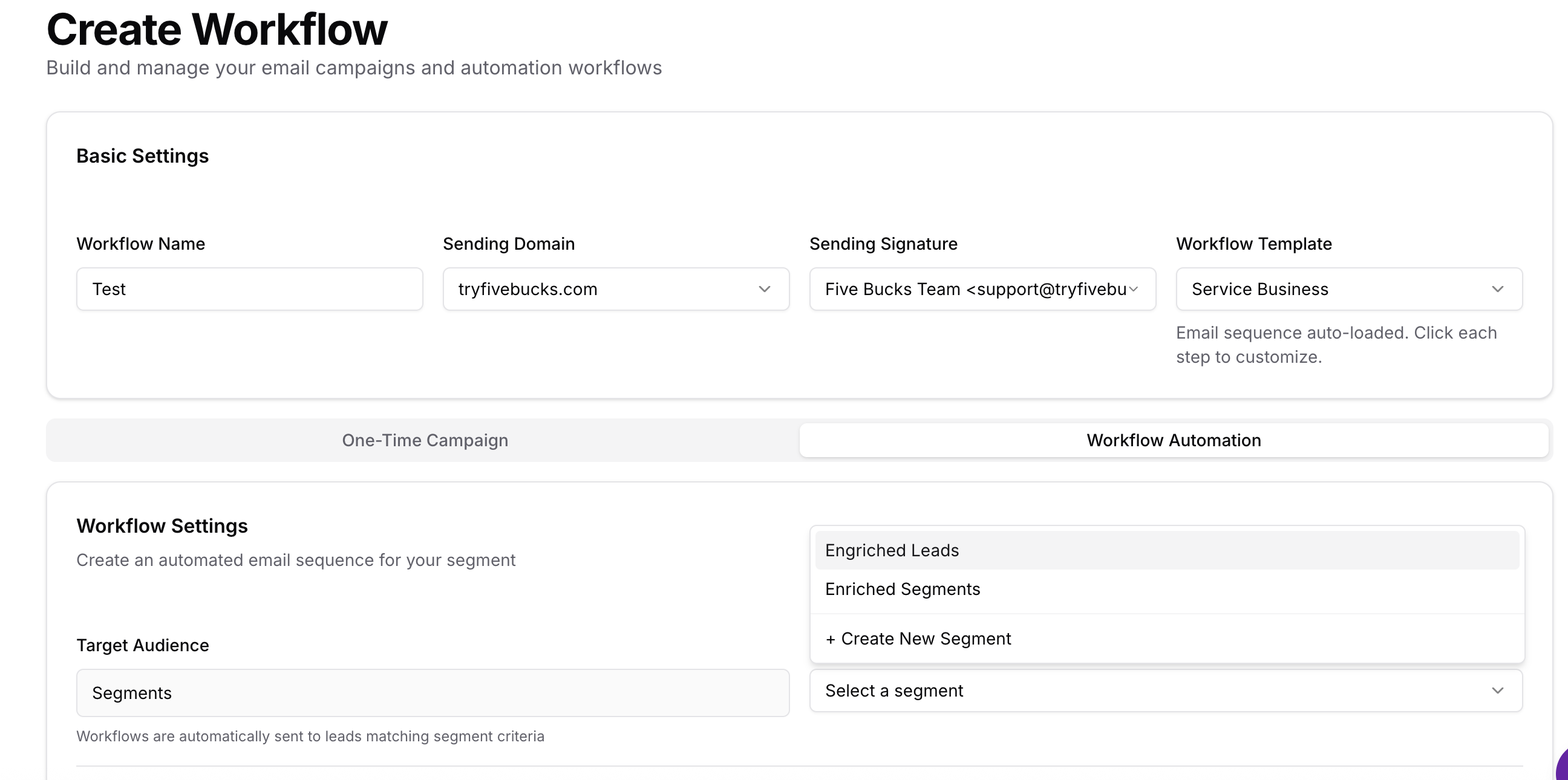
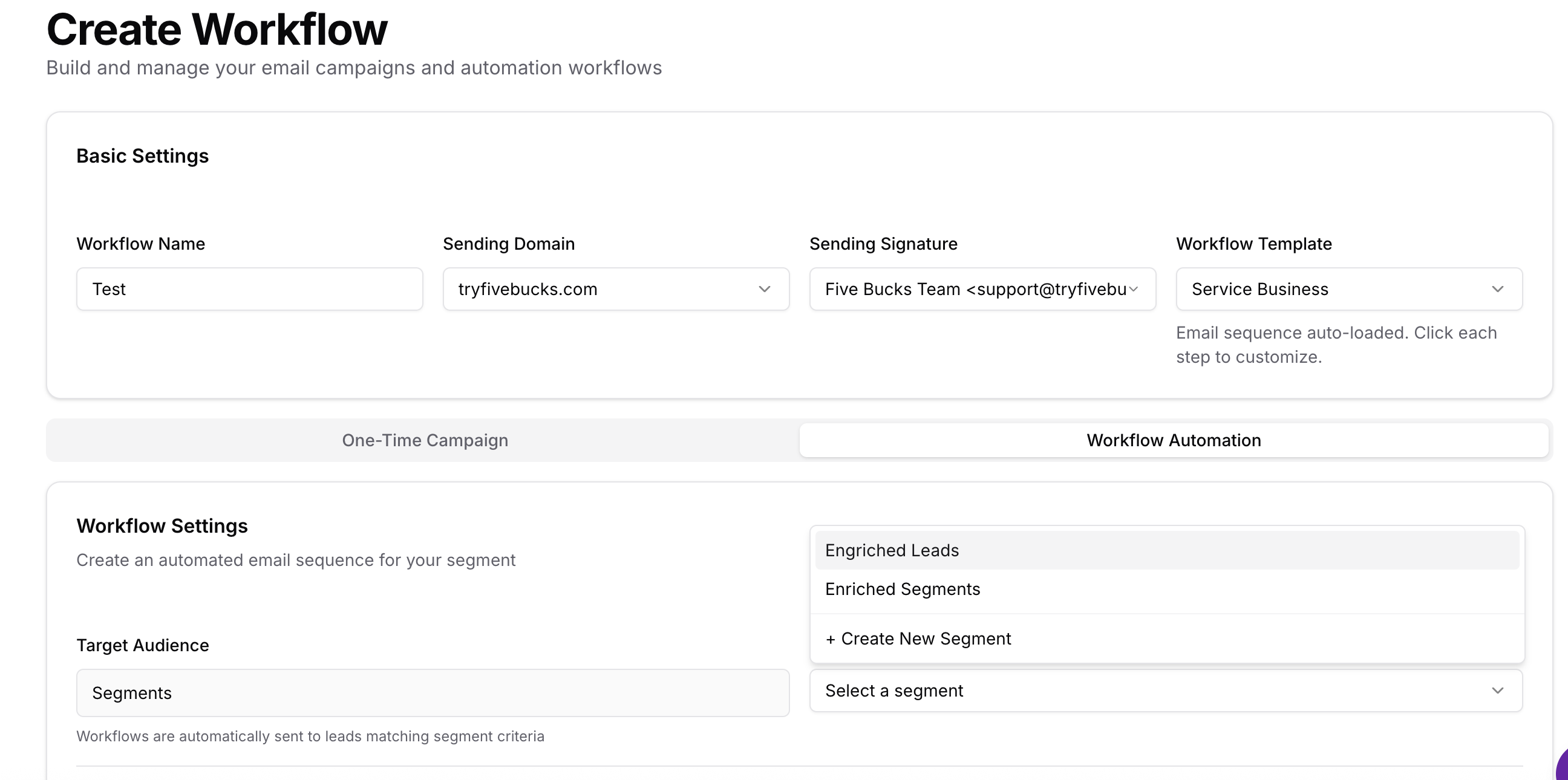
Target segments in scheduled campaigns for auto-refreshing audiences.
Loading image...
Campaign Targeting Options
When creating email campaigns, you can target:
- Single Segment: Send to all current matching leads
- Multiple Segments: Combine multiple segments (union, recipients in any segment)
- Segment + Additional Filters: Further filter segment members
- Segment Exclusions: Exclude another segment (e.g., "All New Leads" minus "Already Contacted")
Why Segments Excel for Automated Campaigns
Always-fresh audiences:
- Segment evaluated at campaign schedule time (gets current matching leads)
- New leads automatically included (no manual refresh)
- Status changes reflected (e.g., "contacted" leads auto-excluded from "new leads" segment)
Behavior-based targeting:
- "Leads replied in last 7 days" segment always current
- "Qualified but not contacted" updates as leads are contacted
- "Cold leads >30 days" captures leads as they become cold
Scheduled Campaign Workflow
Loading image...
How automated campaigns work with segments:
- Campaign Setup:
- At Schedule Time (e.g., 10 AM daily):
- Next Schedule Time:
Example: Daily new leads nurture
- Segment:
Status = New AND Enrichment Status = Enriched - Schedule: Daily at 10 AM

Email: Welcome email with value proposition
Result: Every new enriched lead automatically receives welcome email next day at 10 AM
Duplicate Prevention
Segments track which leads already received campaign emails:
- Workflow State: Tracks lead IDs that entered workflow
Skip Logic: Leads already sent emails are skipped on subsequent runs
Only New Matches: Only leads newly matching segment receive emails
Pro Tip
Segment Performance Optimization
Optimize segments for fast evaluation and scaling.
Keep Filters Simple
Filter complexity impacts performance:
- ✅ Simple (fast): 2-5 conditions on indexed fields (status, source, job_title)
- ⚠️ Moderate (acceptable): 5-10 conditions
- ❌ Complex (slow): 10+ conditions with nested JSONB queries
Example comparison:
Fast segment:
Status = New Source = Apollo Search Enrichment Status = Enriched
→ 50ms query time
Moderate segment:
Status = New OR Contacted company.size >= 50 company.industry IN ["SaaS", "Technology"] person.seniority_level = "C-Suite"
→ 200ms query time
Slow segment:
Status = New OR Contacted company.size BETWEEN 50 AND 500 company.revenue >= 1000000 company.technologies @> ["Salesforce", "HubSpot", "Stripe"] person.location.country = "United States" person.location.state IN ["CA", "NY", "TX", "FL", "IL"] job_title contains "CEO" OR "VP" OR "Director" OR "Manager"
→ 1,500ms+ query time
Keep enrichment filters efficient
Faster filters:
- ✅
company.size >= 50 - ✅
company.industry = "Technology" - ✅
company.technologies @> ["Salesforce"] - ⚠️ Broad text search on company name can be slower
Fast count in list views
Segment list views show member counts without loading full member lists, so the list stays fast even with many segments.
Pagination for Large Segments
Load members in batches:
- Default: 50 leads per page
- Use pagination for segments with 500+ members
Convert Large Segments to Lists
When to convert:
- Segment >1,000 members and performance slow
- Running one-time campaign (don't need dynamic updates)
- Need to export frequently (list exports faster)
Performance comparison:
- Segment (5,000 members): 3-5 seconds to load
- List (5,000 members): <500ms to load (6-10x faster)
Recommended Segment Sizes
- < 100 leads: Excellent performance (instant)
- 100-500 leads: Good performance (< 1 second)
- 500-2,000 leads: Acceptable performance (1-3 seconds)
- 2,000-10,000 leads: Moderate performance (3-7 seconds)
- > 10,000 leads: Poor performance (7+ seconds) — consider list
Troubleshooting
Segment Count Slow (>5 seconds)
Problem: Member count takes long time to calculate
Causes & Solutions:
1. Complex filter criteria
- Cause: 10+ filter conditions with nested JSONB queries
- Solution: Simplify filters—remove non-essential conditions
- Tip: Test each filter individually to identify slow conditions
2. Large lead database (50,000+ leads)
- Cause: Search covers many leads
- Solution: Add more restrictive filters (narrow search space)
- Alternative: Convert to list (pre-compute memberships)
3. Database load (peak hours)
- Cause: Database under heavy load
- Solution: Retry during off-peak hours
- Temporary: Accept slower performance during peak times
Members Not Matching Expectations
Problem: Segment shows unexpected leads or missing expected leads
Diagnosis:
1. Verify filter logic (AND vs OR)
- Issue: AND requires ALL conditions; OR requires ANY condition
- Example:
Status = NewANDJob Title = CEOrequires BOTH (narrows results) - Solution: Review filter logic mode—use OR to broaden, AND to narrow
2. Check lead data
Issue: Leads missing expected field values
Example: Filter for Job Title = CEO but lead has null job_title
Solution: Inspect lead records
verify fields have expected values
- Tool: Use "Preview Members" to see sample leads and their data
3. Timing issue (data not yet enriched)
- Issue: Filter for enrichment data but leads not yet enriched
- Solution: Add
Enrichment Status = Enrichedfilter to exclude unenriched leads
Segment Too Large (>10,000 members)
Problem: Segment has 10,000+ members and loads slowly
Solutions:
Option 1: Add more filters
- Narrow audience with additional conditions
- Example: Add
company.size >= 100orperson.seniority_level = "C-Suite" - Goal: Reduce to <2,000 members for good performance
Option 2: Split into multiple segments
- Create geographic splits: "US Leads", "EMEA Leads", "APAC Leads"
- Create seniority splits: "C-Suite", "VP/Director", "Manager/IC"
- Target all segments in campaign (campaign supports multiple segment targeting)
Segment Not Updating
Problem: Segment should include new leads but doesn't show them
Diagnosis:
1. Page not refreshed
- Cause: Viewing cached page
- Solution: Hard refresh page (Cmd+Shift+R or Ctrl+F5) to trigger re-evaluation
2. Leads don't match filter criteria
- Cause: New leads missing required field values
- Example: Segment requires
Status = New AND Enrichment Status = Enriched, but new leads not yet enriched - Solution: Verify new leads meet ALL filter conditions
3. Filter too restrictive
- Cause: Filter criteria too narrow
- Solution: Loosen filters—review each condition to ensure it's necessary
4. Project isolation
- Cause: New leads added to different project
- Solution: Verify you're viewing the correct project
Best Practices
Naming Conventions
Use descriptive, purpose-driven names:
Pattern: [Behavior/Status] - [Filters] - [Use Case]
Examples:
- ✅ "New Enriched CEOs - Daily Outreach"
- ✅ "Replied Last 7 Days - Hot Leads Nurture"
- ✅ "Cold >30 Days - Re-engagement Campaign"
- ✅ "Qualified Not Contacted - Weekly Follow-up"
- ❌ "Segment 1"
- ❌ "Test"
- ❌ "Leads"
Benefits:
- Clear purpose at a glance
- Easy to find segments for specific use cases
- Understand intent months later
Monitor Segment Performance
Track evaluation speed:
- Note how long segments take to load members
- If >3 seconds, consider simplifying filters
- If >7 seconds, convert to list
Audit segment usage:
- Monthly: Review active segments, delete unused ones
- Check which segments used in campaigns (keep those)
- Archive test/sandbox segments
Optimize for Campaign Use
Dynamic nurture campaigns:
- Use segments for ongoing nurture ("Qualified not contacted")
- Segment auto-updates as leads are contacted (removes from segment)
- New qualified leads automatically enter campaign
One-time campaigns:
- Use segment to explore and refine audience
- Convert to list right before campaign launch
- List provides stable audience (no mid-campaign changes)