

Email Setup
Monitor your email sending status, domain warmup progress, and daily sending limits to ensure healthy email deliverability.
What is Email Setup?
Email Setup is your central dashboard for monitoring email sending health across all verified domains. After verifying a domain, this page shows real-time sending status, warmup progress, and daily capacity—helping you understand when you can send emails and how to protect your domain reputation.
The Email Setup page displays:
- Warmup Progress: Track your domain's 14-day warmup journey

Daily Sending Limits: See current limits, emails sent today, and remaining capacity
Server Status: Verify email servers are connected and operational
- Anti-Spike Protection: Understand how the system prevents reputation damage
Before You Begin
- At least one verified domain (see Domain Verification)
- Email server automatically created during domain verification
- Active FiveBucks project with Lead Generation enabled
Navigate to Email Setup
From your dashboard, click Lead Generation in the sidebar, then click Setup in the submenu.
Loading image...
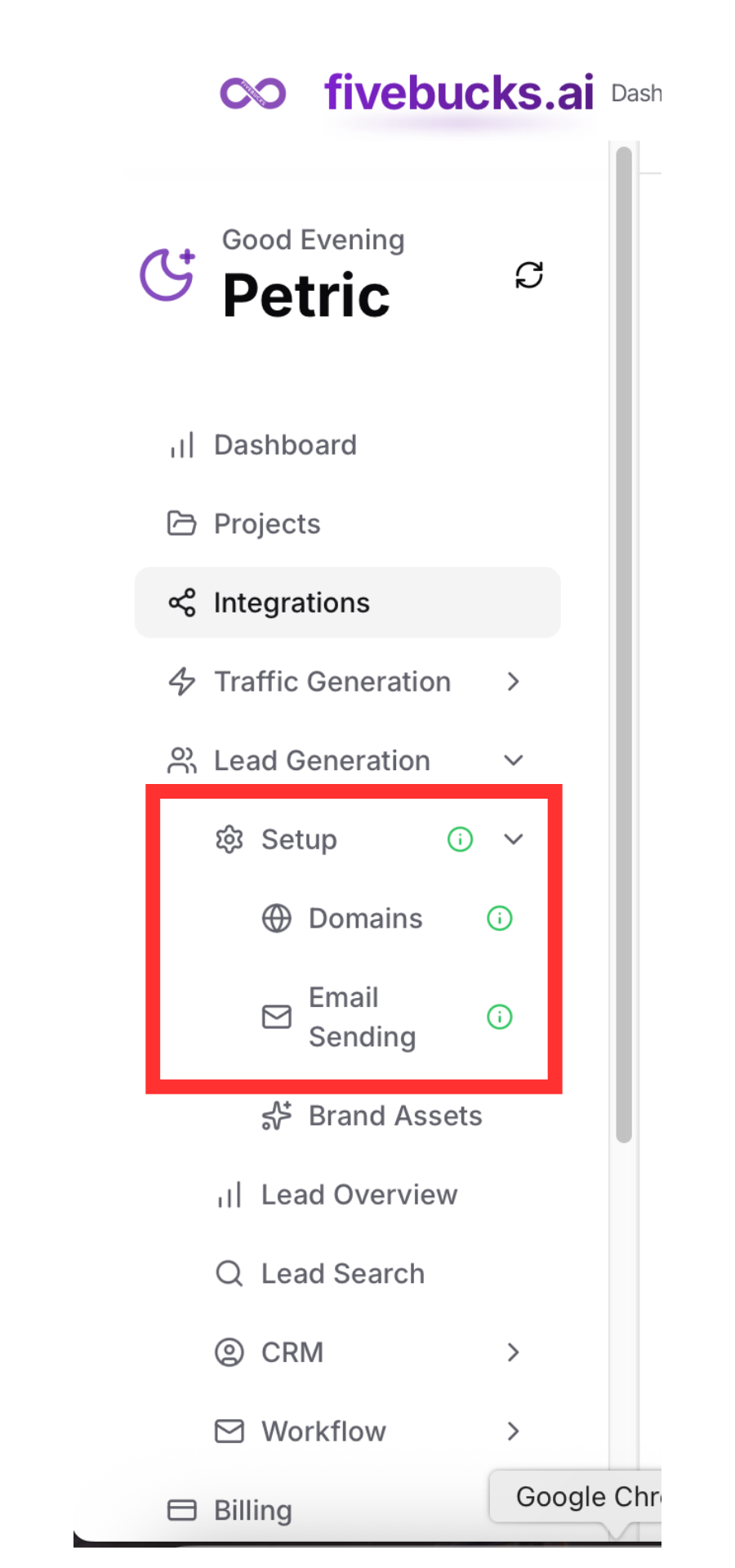
You'll see a list of your verified domains with their current sending status.
Understanding Your Sending Status
Each verified domain displays a card showing its current email sending configuration:
Loading image...

Domain Information:
- Domain Name: Your verified sending domain (e.g., "yourbusiness.com")
- Server Status: Connected (green) or Not Connected (red)
- Sending Status Badge: Active, Warming Up, or Limited
Sending Capacity:
Daily Limit: Maximum emails you can send today
Sent Today: Number of emails already sent today
Remaining: How many more emails you can send today
Last Sent: Timestamp of most recent email
Note
Understanding Domain Warmup
New domains go through a mandatory 14-day warmup period to build sender reputation with inbox providers (Gmail, Outlook, etc.). This gradual increase in sending volume prevents your domain from being flagged as spam.
Loading image...

What is domain warmup?
Inbox providers like Gmail don't trust new domains with no sending history. They watch for sudden high-volume sending (a common spam pattern). Warmup builds trust by slowly increasing daily sending over 14 days.
14-Day Warmup Schedule:
Day 1: 5 emails/day
Day 2: 10 emails/day
Day 3: 20 emails/day
Day 4: 30 emails/day
Day 5: 50 emails/day
Day 6: 75 emails/day
Day 7: 100 emails/day
Day 8: 150 emails/day
Day 9: 200 emails/day
Day 10: 300 emails/day
Day 11: 400 emails/day
Day 12: 500 emails/day
Day 13: 750 emails/day
Day 14: 1,000 emails/day
After Day 14: Full capacity
plan daily cap, typically 1,000+ emails/day
Pro Tip
Warmup Progress Display
Your domain card shows:
- Current Warmup Day: "Day 3 of 14" or "Warmup Complete"
- Progress Bar: Visual indicator (21% = Day 3, 100% = Day 14+)
- Days Remaining: "11 days remaining" countdown
- Today's Limit: Current day's sending limit (e.g., "20 emails" on Day 3)
Anti-Spike Protection Explained
FiveBucks automatically protects your domain from sudden sending spikes that could damage reputation—even after warmup completes.
How Anti-Spike Protection Works:
- The system calculates your recent sending baseline using a rolling average of recent activity.
- Daily sending may be temporarily capped relative to that baseline.
- As consistent sending increases, your allowable limit increases automatically.
This prevents sudden volume jumps that can disrupt normal sending patterns and affect inbox placement.
Example:
If your domain has been sending around 200 emails per day, the system may temporarily limit how quickly you can scale beyond that level
even if your plan allows higher daily sending.
As you consistently send at higher volumes, your baseline increases and your limits expand automatically.
Note
Soft Re-Warmup for Inactive Domains
If your domain hasn’t sent emails in 14+ days, the system automatically applies a soft re-warmup to protect your sender reputation.
What happens:
What happens:
- Daily sending limit temporarily reduces to a conservative safety cap
- Sending limits automatically increase as consistent sending resumes
- Helps prevent deliverability issues caused by sudden volume spikes after inactivity
Why this matters:
Inbox providers monitor sending consistency. A domain that remains inactive for weeks and then suddenly sends a large volume of emails may experience reduced inbox placement.
Pro Tip
Understanding Sending Limit Enforcement
FiveBucks enforces sending limits automatically to protect your domain:
Before sending emails:
- System checks
checkSendingAllowed(domainId) - Verifies remaining capacity > 0
- If limit reached: Stops sending, shows error message
- If partial capacity: Sends only up to remaining limit
During campaign sends:
- If a campaign has 500 emails but you have 300 remaining → Sends 300; the other 200 stay in the system and are sent on a later run when capacity is available (e.g. the next day).
When limits reset:
- Every day at midnight UTC
- "Sent Today" resets to 0
- "Remaining" resets to full daily limit
- "Last Sent Date" updates after each send
Warmup Completion
After 14 days of successful sending, your domain reaches full capacity:
What changes:
Status badge: "Email Sending Active"
green
Daily limit: Increases to your plan's daily cap
typically 1,000-10,000 emails/day
warmup_completed_at timestamp set
- "Days Remaining": Removed
warmup_completed_attimestamp set
Full capacity benefits:
- Send up to plan limits immediately (no daily caps below plan)
- Anti-spike protection still applies (200% of 7-day average)
- No more warmup delays
Note
Troubleshooting
Hitting Sending Limits Too Quickly
Problem: Running out of daily capacity before finishing campaigns
Solutions:
- Wait for warmup completion - Limits increase daily during 14-day warmup
- Spread campaigns across days - Don't send all emails in one batch
- Check plan daily cap - Your plan may limit total daily sends
- Upgrade plan - Higher-tier plans offer increased daily caps
- Use multiple domains - Each domain has independent daily limits
Server Status Shows "Not Connected"
Problem: Domain card displays red "Not Connected" server status
Solutions:
- Re-verify domain - Go to Domain Verification, click "Verify Domain" again
- Contact support - Server token may need regeneration
Anti-Spike Protection Blocking Sends
Problem: "Sending limited due to anti-spike protection" error
Explanation: Your sending volume increased too suddenly (>150% of 7-day average)
Solutions:
- Gradual increase - Ramp up daily sending slowly over 7-10 days
- Consistent volume - Send similar amounts daily to build higher 7-day average
- Wait 24 hours - Tomorrow's limit will be higher if today was high-volume
Soft Re-Warmup After Inactivity
Problem: Daily limit dropped after not sending for 14 days+
Explanation: System triggered soft re-warmup to protect reputation after 14+ days of inactivity
Solutions:
- Send consistently - Resume regular sending to complete re-warmup (3-5 days)
- Maintain activity - Send small volumes weekly even during quiet periods
- Use multiple domains - Keep one domain warm while others rest