Workflows
- Sender reputation issues
- Emails going to spam
Create and manage Workflow Automation (multi-email sequences to segments on a schedule) and One-Time Campaigns (single email blast to lists)—all from the same Workflows page.
What are Workflows?
The Workflows page shows two types of email: One-Time Campaign (single email blast to a list or all leads) and Workflow Automation (multi-email sequence sent to a segment on a schedule). This doc focuses on Workflow Automation.
Workflow Automation is an automated email sequence that nurtures leads over time. You choose one Lead Segment; the system runs daily at a time you set (e.g. 4 AM, 10 AM, or 9 PM UTC) and sends the next email in the sequence to each lead. New leads that match the segment automatically enter the sequence.
A Workflow Automation consists of:
- Email Sequence: Multiple emails sent in order (initial + follow-ups with delays)
- Targeting: A single Lead Segment (required; lists and “all leads” are for One-Time Campaigns only)
- Schedule: A daily run time (4, 10, or 21 UTC)
- Personalization: Variables like
{{first_name}}and{{company_name}}replaced per lead - Tracking: Opens, clicks, bounces tracked automatically
Before You Begin
- At least one verified domain (see Domain Verification)
- At least one confirmed email signature (see Email Signatures)
- Leads imported or synced (see Lead Management)
- Brand assets configured for personalization (optional, see Brand Assets)
Understanding Workflow Status
Workflows have three statuses that control email sending:
Loading image...
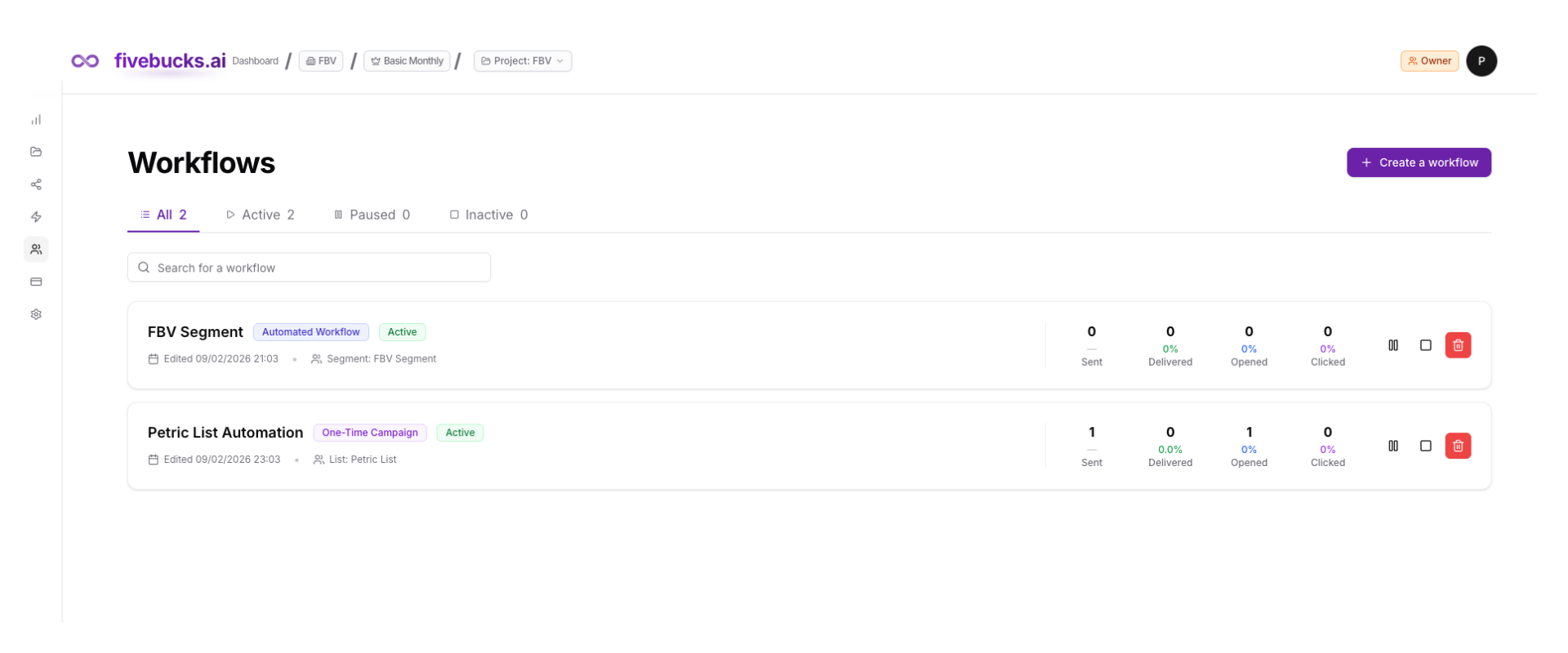
Inactive (Gray Badge)
- What it means: Workflow created but not started

Email sending: No emails sent
Next action: Click "Start Campaign" to activate
Active (Green Badge)
What it means: Workflow running, sending emails automatically
Email sending: Emails sent to new leads matching targeting criteria
Next action: Click "Pause" to temporarily stop, or monitor performance
Paused (Yellow Badge)
- What it means: Workflow temporarily stopped
Email sending: No new emails sent, but already
scheduled emails complete
Next action: Click "Resume" to reactivate, or "Delete" to remove
Note
Create a Workflow
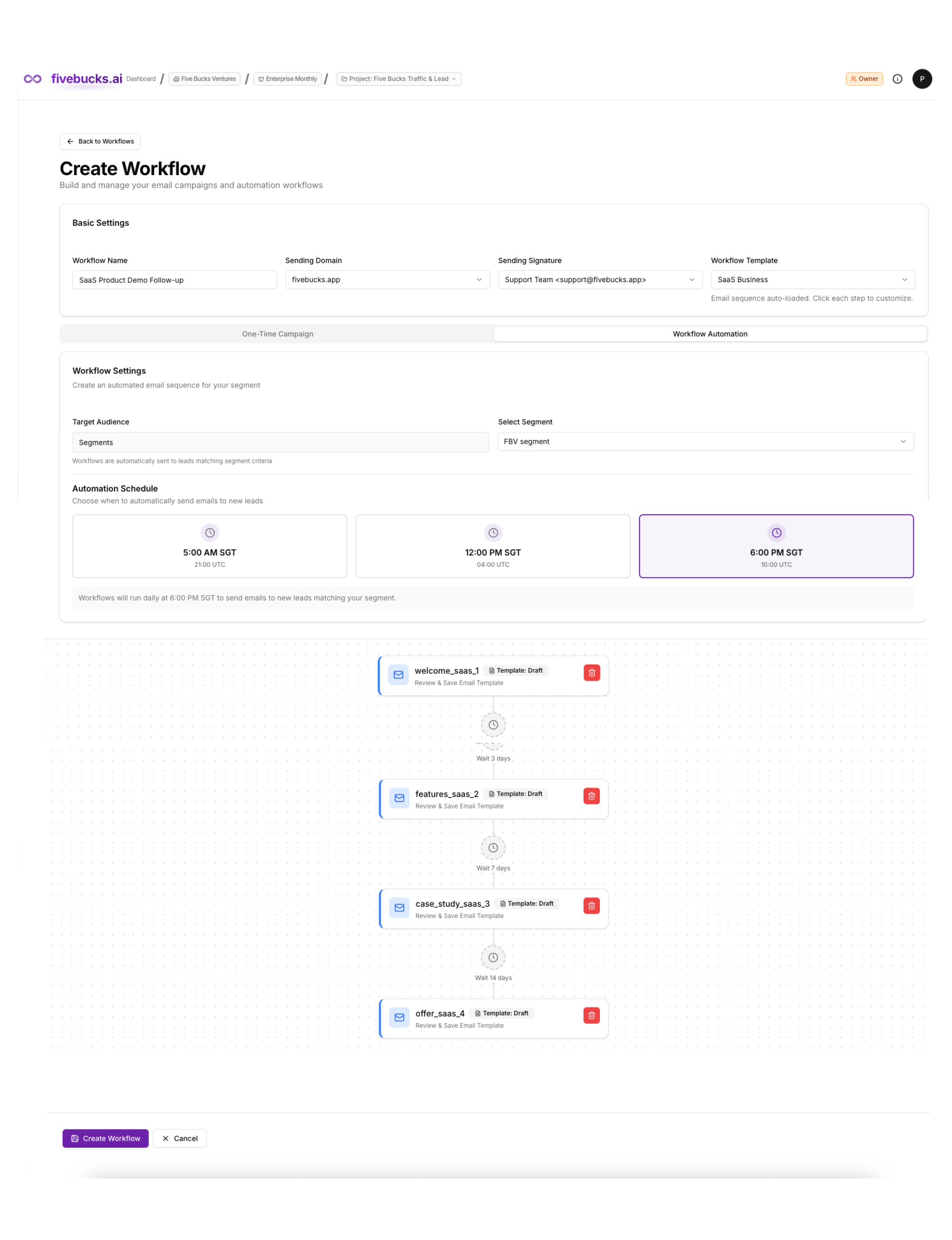
Workflow Automation sends a multi-email sequence to leads in a Segment on a schedule. You must choose the Workflow Automation tab (not One-Time Campaign) and select one Lead Segment; you also set a daily run time (4 AM, 10 AM, or 9 PM UTC).
- Navigate to Lead Generation → Workflows
- Click "Create a workflow"
- Fill in workflow details:
- Choose Workflow Automation from the two tabs (not One-Time Campaign).
- Configure targeting: select one Lead Segment. For Workflow Automation, only segments are allowed; "All Leads" and "List" are for One-Time Campaigns only.
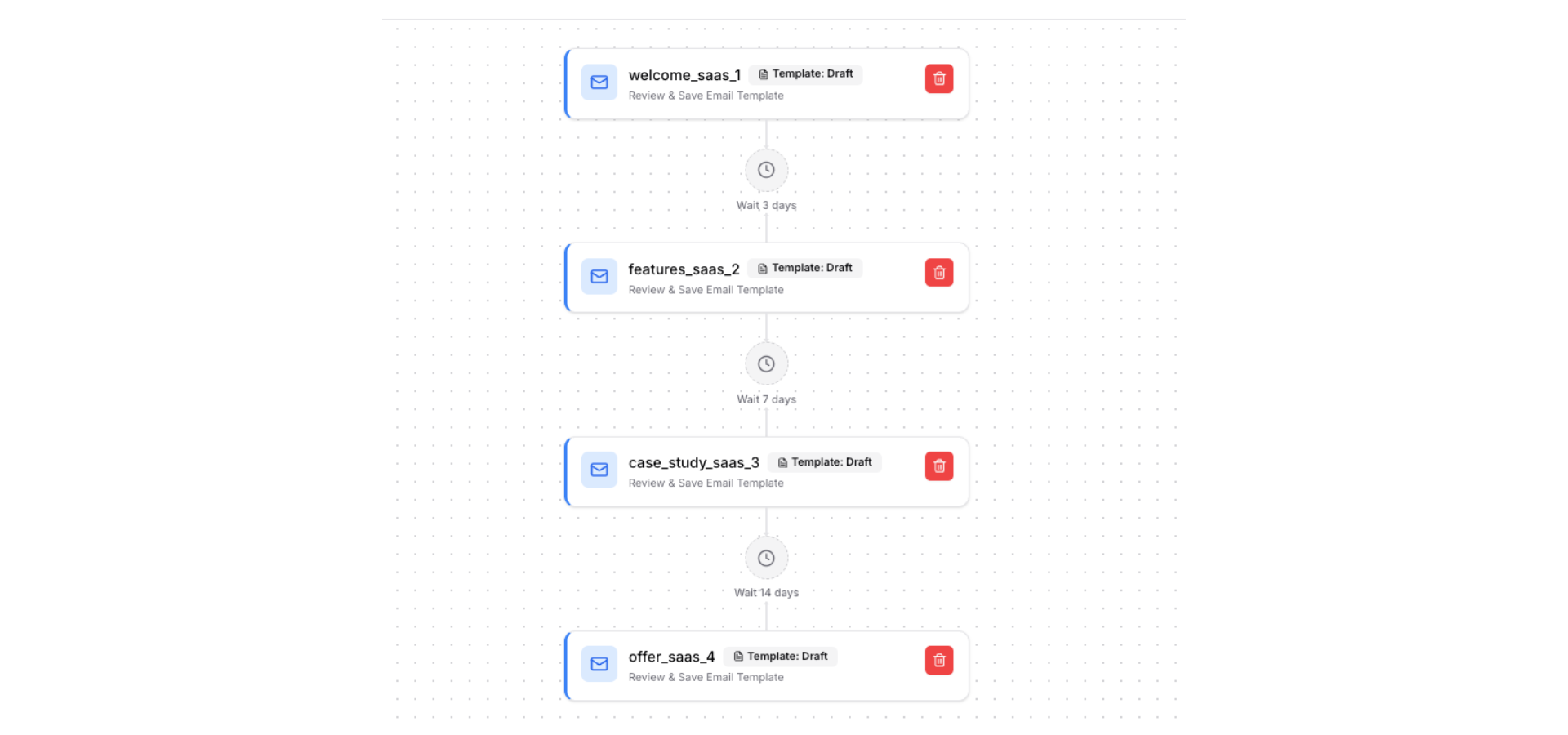
- Set the schedule (e.g. 10 AM UTC). Then build your email sequence: you will see multiple email steps. Click each step to edit subject and body, set the delay in days after the previous email, and save. Repeat for each step.
- Click "Create Workflow"
Loading image...
The workflow is created with Inactive status and appears in your workflows list.
Pro Tip
Start Your Workflow
Activate your workflow to begin sending emails.
Loading image...
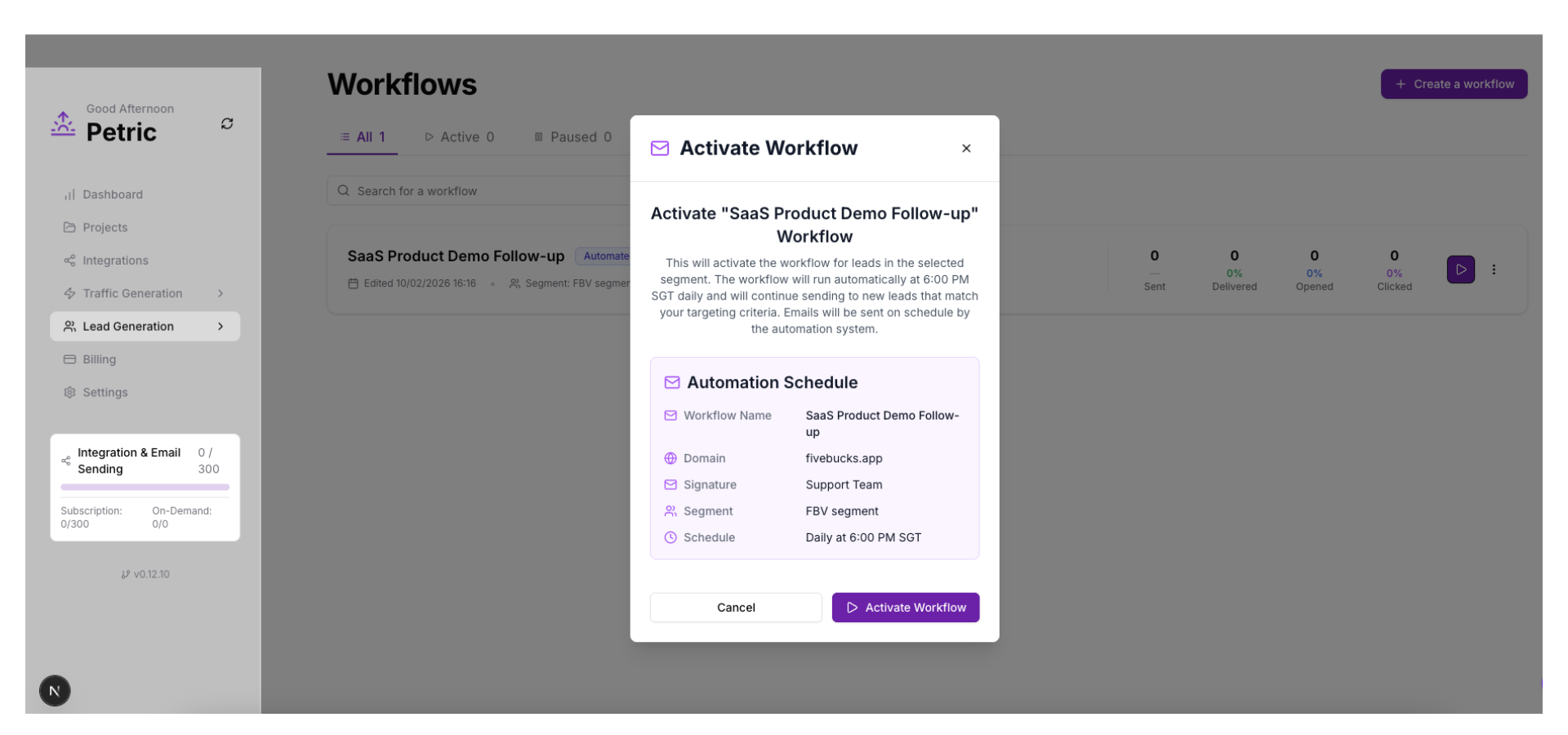
To start a workflow:
- Find your Inactive workflow in the list. The list shows both One-Time Campaigns and Workflow Automations.
- For a Workflow Automation, click the Start button, then "Activate Workflow" in the dialog. For a One-Time Campaign, click Start then "Start Campaign".
- The system immediately:
Loading image...
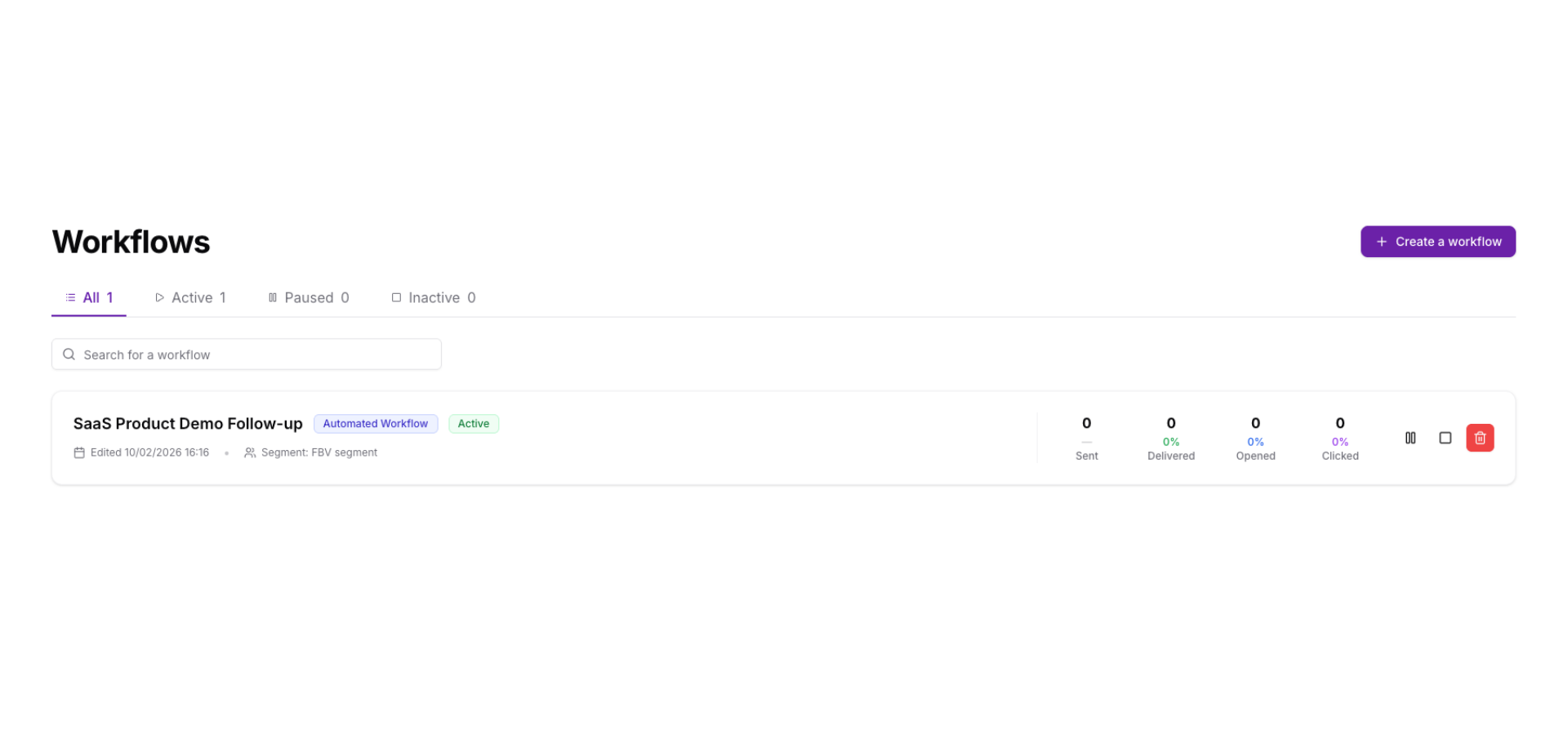
What happens after starting:
- Schedule initial email sending time, and subsequent email sending time based on
send_delay_days(e.g., +1 day, +3 days) - Statistics update in real-time (sent, opened, clicked), and you can see this at the Workflow home page
Note
Pause a Workflow
Temporarily stop a workflow without deleting it.
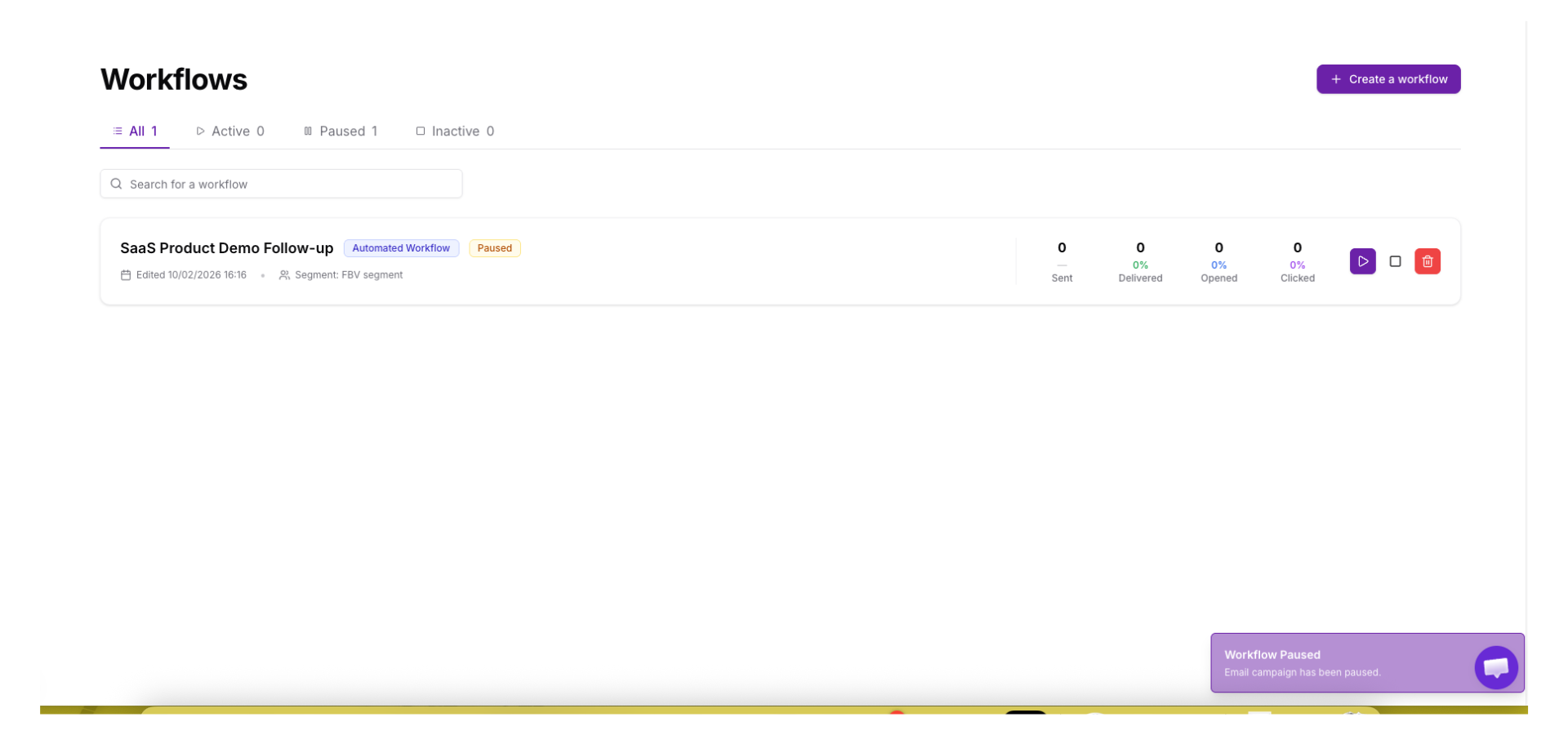
To pause a workflow:
- Find your Active workflow in the list
- Click the "Pause" button
- The system immediately:
When to pause:
Testing or debugging email content
Updating targeting criteria or email templates
- Temporarily hitting daily sending limits
- Seasonal campaigns (pause during holidays)
- Reviewing performance before scaling
Loading image...
Pro Tip
Resume a Workflow
Reactivate a paused workflow to continue sending.
Loading image...
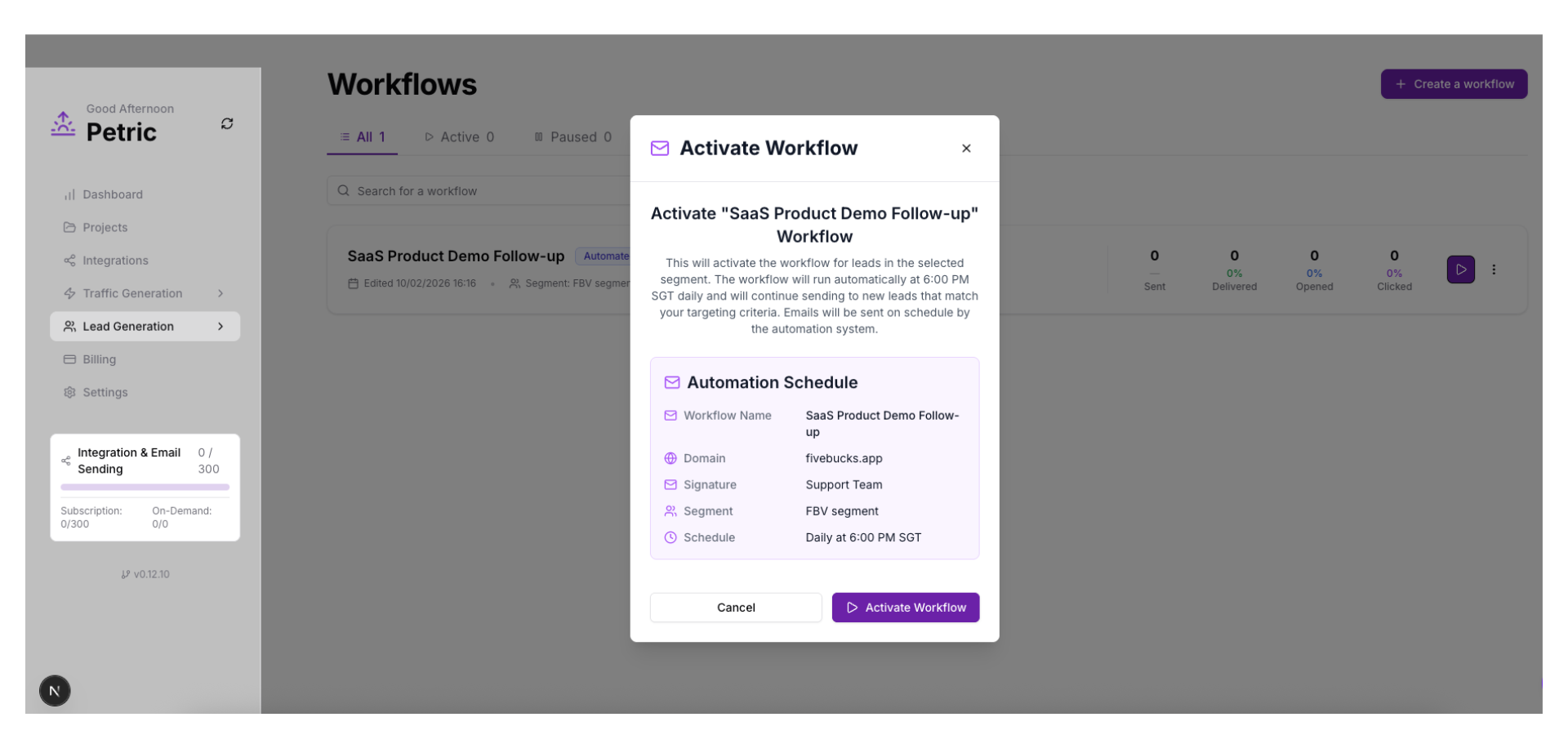
To resume a workflow:
- Find your Paused workflow in the list
- Click the "Resume" button
- The system immediately:
Resume behavior:
- Leads already in the sequence continue receiving follow-ups
New leads matching targeting start receiving emails
No emails are re
sent to leads who already received them
Note
Delete a Workflow
Permanently remove a workflow and all its data.
Loading image...
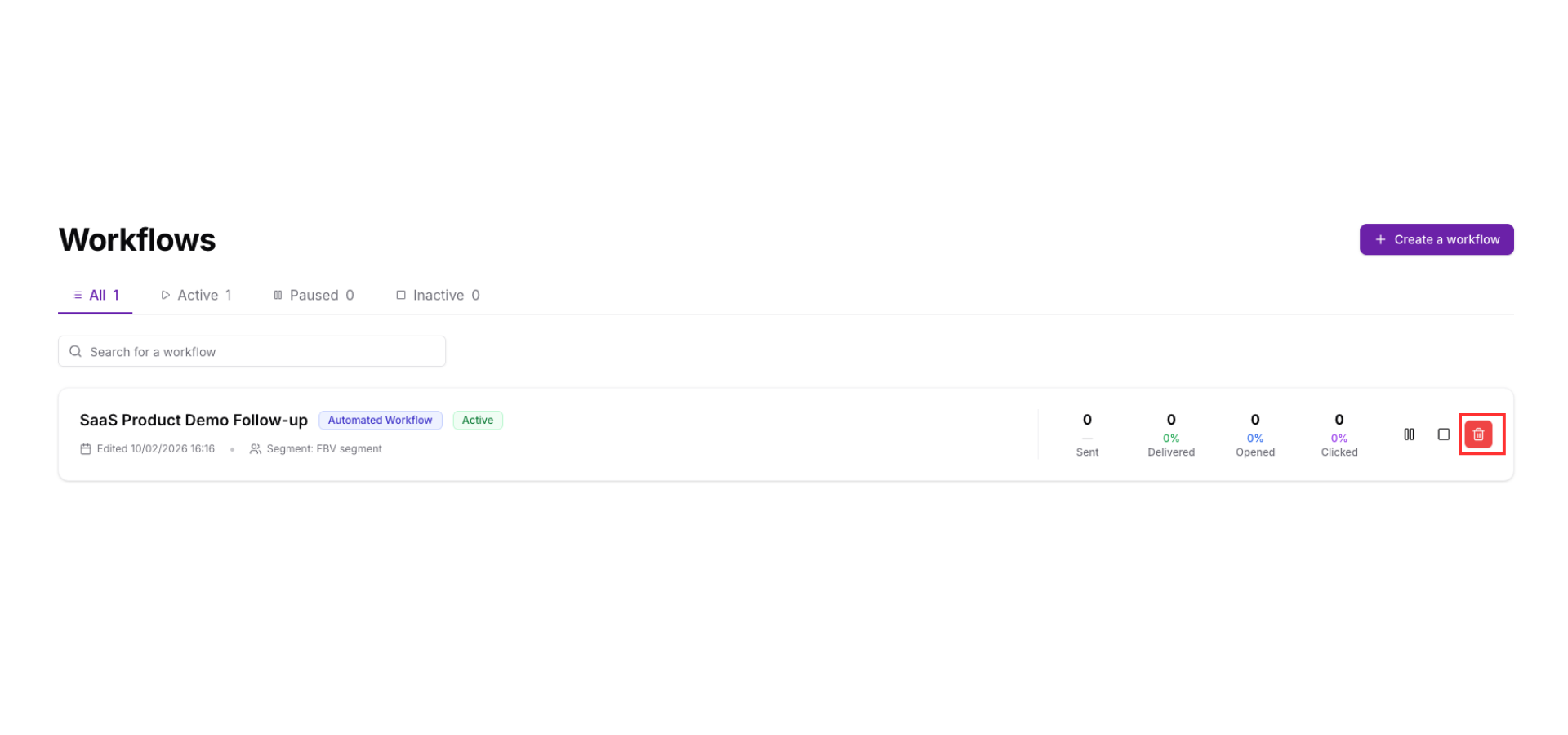
To delete a workflow:
- Find the workflow you want to delete
- Click the "Delete" button
- A confirmation dialog appears
- Confirm the deletion
- The system immediately:
Loading image...
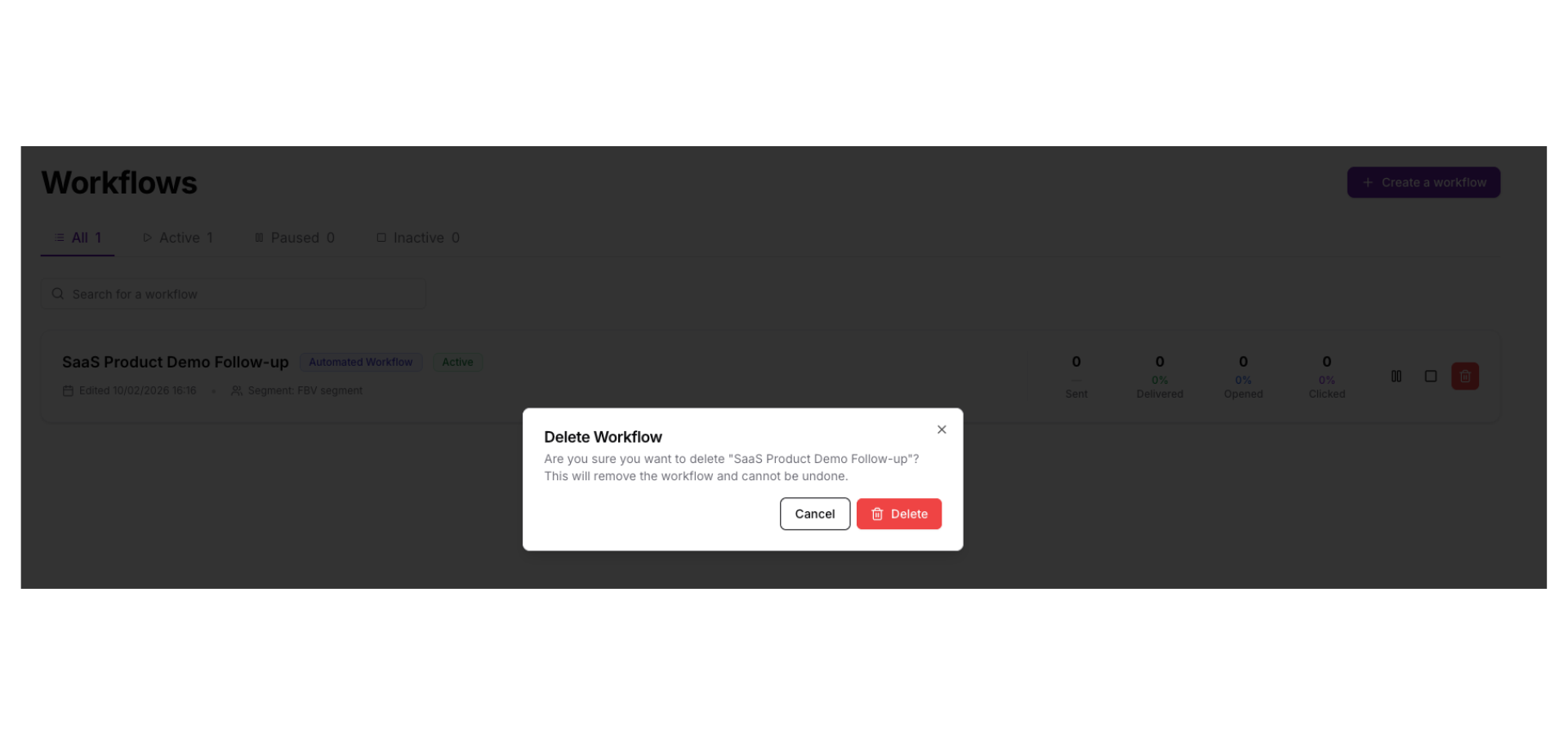
What gets deleted:
- Workflow configuration (name, targeting, email sequence)
- All send tracking data (sent, opened, clicked, bounced)
- Scheduled follow-ups for leads in the sequence
What is NOT deleted:
- Leads themselves (remain in your lead database)
Already-sent emails
can't "unsend" emails
Email signatures, domains, brand assets
remain for other workflows
Understanding Workflow Automation
Workflow Automation runs automatically on a schedule (cron)—no manual "Start Campaign" needed. Only workflows that target a Segment and have a schedule set run this way.
Loading image...
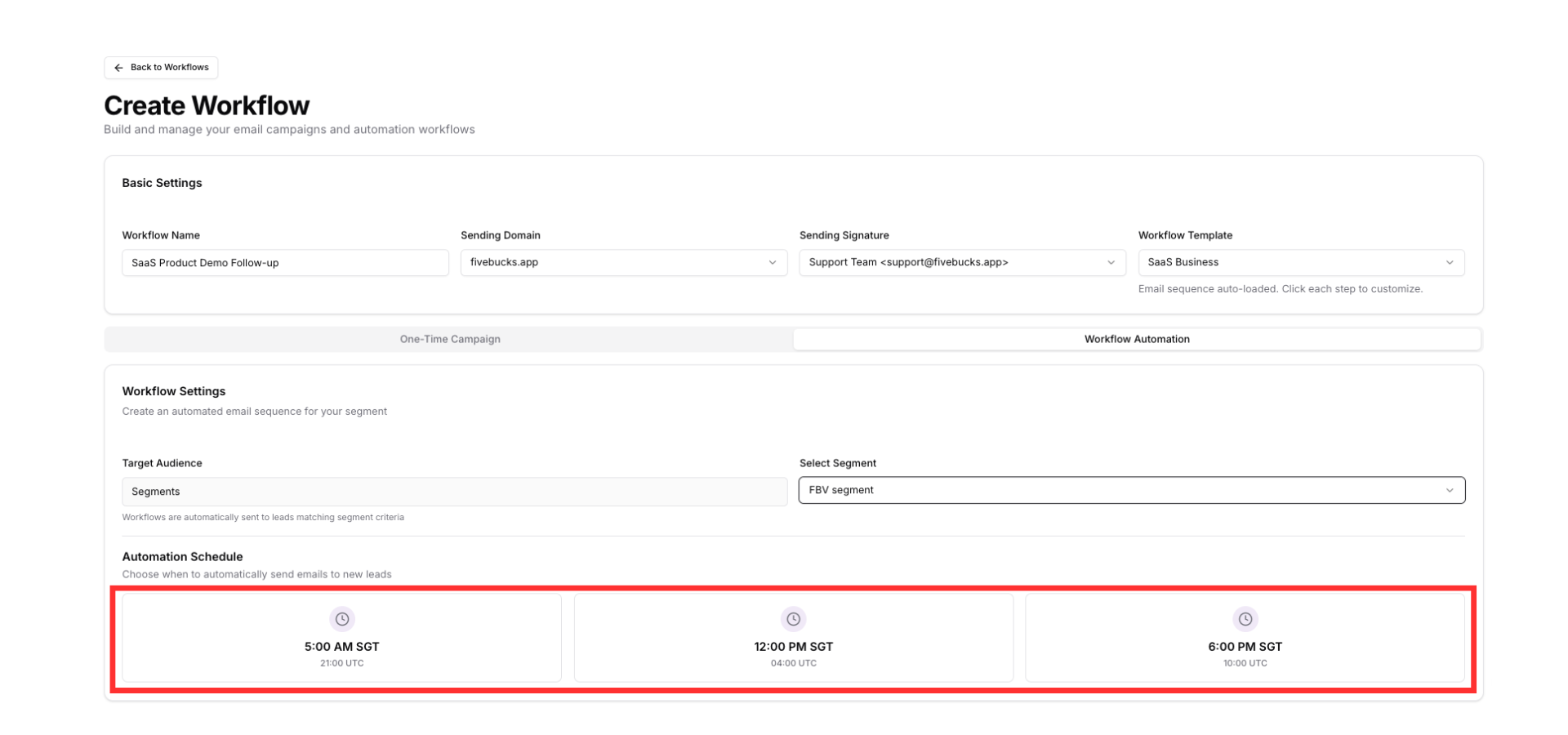
How Automated Execution Works
Schedule Configuration (set during workflow creation):
- Schedule UTC Hours: 4 (4 AM UTC), 10 (10 AM UTC), or 21 (9 PM UTC)
- Segment Targeting Required: Only workflows targeting dynamic segments can automate
- Cron Job Trigger: System checks for active workflows at each scheduled hour
Automated execution process:
- At scheduled UTC hour (e.g., 10 AM UTC), cron job runs
- System finds all Active workflows with
schedule_utc_hour = 10 - For each workflow:
Loading image...
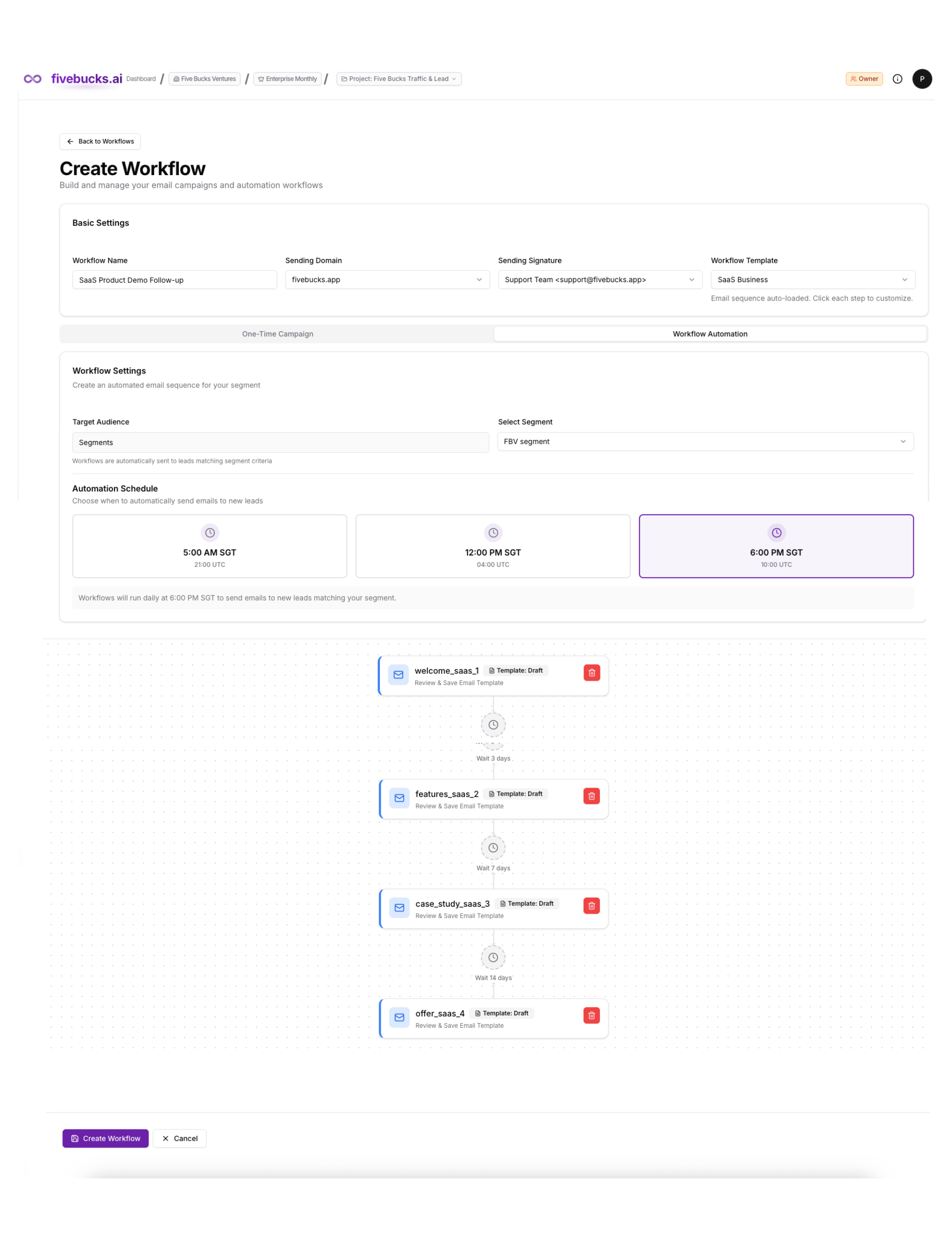
Why use Workflow Automation:
- Continuous nurturing: New leads automatically enter sequences without manual intervention
- Behavior-based targeting: Segments update dynamically (e.g., "visited pricing page but didn't sign up")
- Consistent timing: Emails always send at optimal times (10 AM in recipient's region)
- Scalability: Handle thousands of leads without manual work
Pro Tip
Understanding Email Sequences
Email sequences are the heart of workflows—multiple timed emails that nurture leads toward conversion.
Loading image...
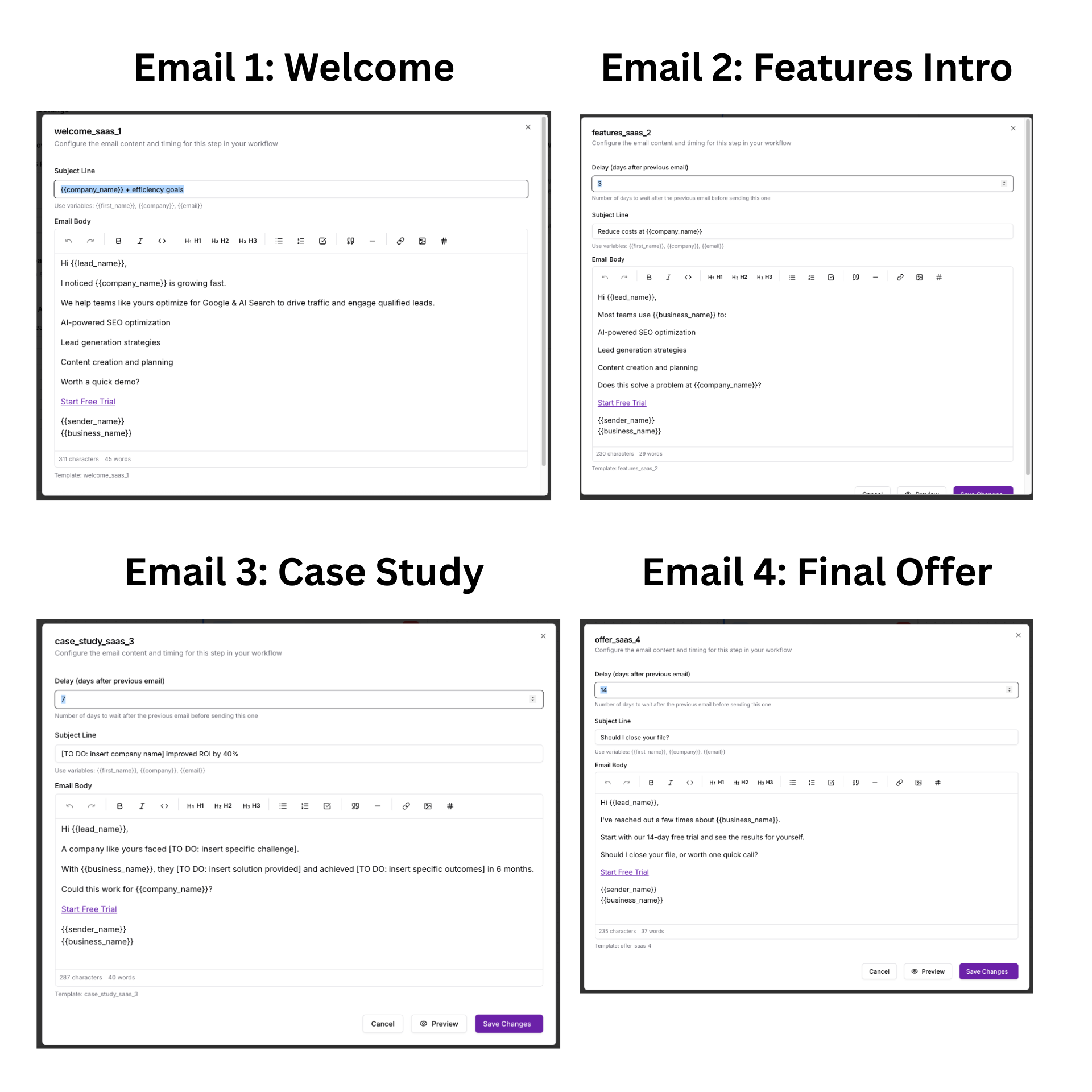
Sequence Structure
Email sequence configuration:
Templates Array: Ordered list of email templates
1, 2, 3, ...
Max Follow-ups: Maximum number of follow-up emails
e.g., 3 = initial + 3 follow-ups = 4 total
Send Interval Days: Default days between emails
can be overridden per template
Template structure (each email in sequence):
Sequence Number: Order position
1 = first email, 2 = first follow-up, etc.
Subject: Email subject line
supports personalization variables
Body HTML: HTML
formatted email body
Body Text: Plain text version
fallback for clients that don't support HTML
Send Delay Days: Days to wait after previous email before sending this one
Example sequence:
- Email 1 (Initial): Send immediately, subject "Hi {{first_name}}, here's your demo"
- Email 2 (Follow-up 1): Send after 1 day, subject "Quick question about {{company_name}}'s goals"
- Email 3 (Follow-up 2): Send after 3 days (4 days total), subject "Last chance: Special offer for {{company_name}}"
Loading image...
Personalization Variables
Variables automatically replaced with lead-specific data:
Lead data variables:
{{full_name}}→ "John Smith"{{first_name}}→ "John"{{company_name}}→ "Acme Corp"{{job_title}}→ "Marketing Manager"{{email}}→ "john@acme.com"
Brand asset variables:
{{business_name}}→ Your brand name{{value_proposition}}→ Your first value prop{{cta_label}}→ Your CTA button text{{sender_name}}→ From your signature
Pro Tip
Scheduled Send Times
How send times are calculated:
First email: Sends immediately when workflow starts
or at next schedule_utc_hour for automated workflows
Follow
up emails: Calculated from previous email's sent_at + send_delay_days
Email Send Tracking
Every email sent through workflows is tracked from scheduling to engagement.
Loading image...
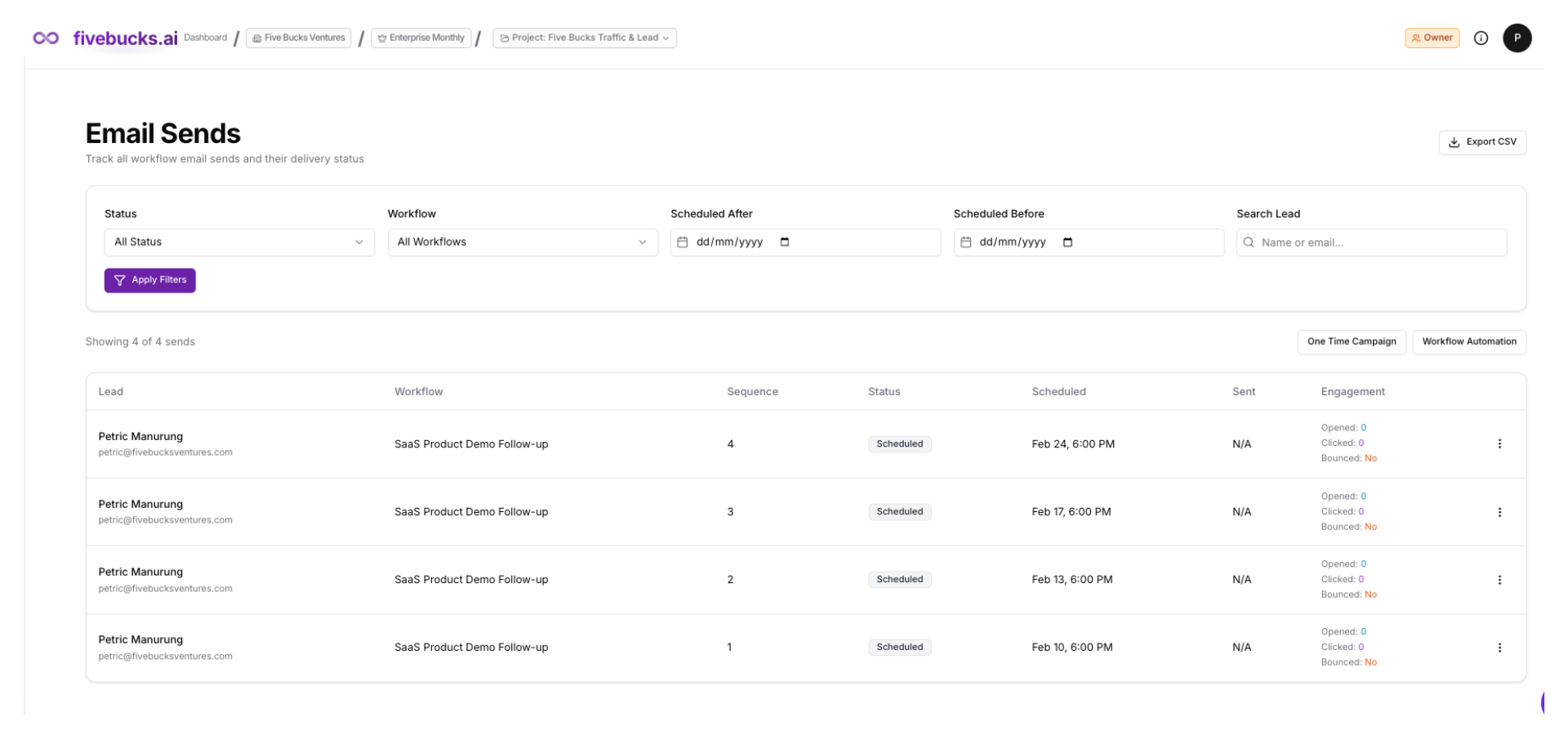
Send Statuses
Status progression:
- Scheduled: Email created and scheduled, waiting to send
- Sent: Email successfully sent
- Opened: Recipient opened the email (tracked via pixel)
- Clicked: Recipient clicked a link in the email (tracked via redirect)
- Bounced: Email bounced (invalid address, full inbox, etc.)
Email Engagement Tracking
How tracking works:
Opens: When the recipient loads images, we received notification from our email partner that updates the send status
Clicks: When clicked, we received notification from our email partner who logs the click and redirects to the actual URL
Bounces: our email partner receives bounce notifications from recipient mail servers and updates status
Webhooks: our email partner sends webhook callbacks to our platform when opens/clicks/bounces occur
Note
Viewing Campaign Statistics
Monitor workflow performance with real-time statistics.
Loading image...
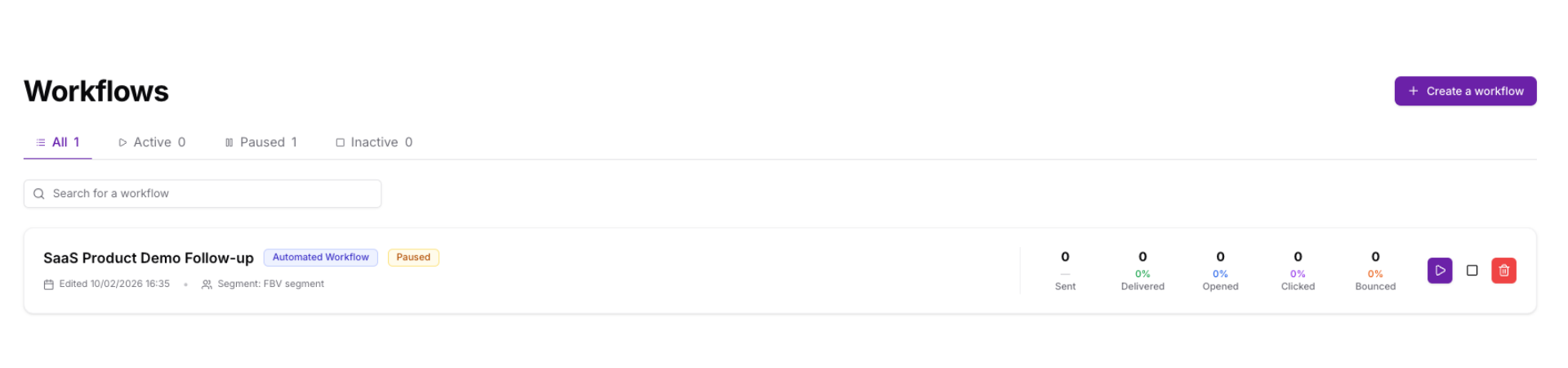
Statistics Displayed
Each workflow card shows:
Total Sent: Count of emails with 'sent' status
Opened: Count of emails with 'opened' status
Clicked: Count of emails with 'clicked' status
Bounced: Count of emails with 'bounced' status
Last Sent Date: Timestamp of most recent email
- Click Rate: (Clicked ÷ Sent) × 100%
- Last Sent Date: Timestamp of most recent email
Example statistics:
- Sent: 450
- Opened: 180 (40% open rate)
- Clicked: 45 (10% click rate)
- Bounced: 5 (1.1% bounce rate)
What good metrics look like:
- Open Rate: 20-40% is typical for cold outreach, 40-60% for warm leads
- Click Rate: 2-5% is typical for cold outreach, 5-15% for engaged leads
- Bounce Rate: <2% is healthy, >5% indicates list quality issues
Pro Tip
Workflow Best Practices
Email Sequence Best Practices
Start strong:
- First email is most important—highest open rates
- Clear value proposition in subject and first line
- Include one clear CTA (don't overwhelm with multiple asks)
Follow-up timing:
B2B: 1-3 days between emails
professionals check email regularly
B2C: 3-7 days between emails
consumers receive more marketing emails
- High-intent leads: Shorter delays (1 day) to capitalize on interest
- Cold outreach: Longer delays (3-5 days) to avoid being pushy
Personalization:
- Use
{{first_name}}in subject and opening line - Reference
{{company_name}}to show you researched them - Vary email content per follow-up (don't just resend the same message)
Clear CTAs:
- One primary action per email (book demo, download guide, reply with question)
- Use action-oriented language ("Schedule your demo" not "Click here")
- Make CTA buttons stand out (use brand colors from Brand Assets)
Targeting Best Practices
Be specific:
- Target leads matching your ideal customer profile
- Avoid broad "all leads" targeting for cold outreach
- Use segments for behavior-based targeting (e.g., "visited pricing page")
Use segments for Workflow Automation:
- Workflow Automation requires a segment (not a list or "all leads").
- Dynamic segments update as lead behavior changes—new matching leads automatically enter the sequence.
- Example: "Leads who opened Email 1 but didn't click" → Send follow-up with different angle.
Use lists for One-Time Campaigns:
- One-Time Campaigns target All Leads or a List (single email blast).
- Lists are static; good for event invitations, product launches, announcements.
- Example: "Webinar registrants" list → Send one reminder email.
Test first:
- Start with 10-50 test leads before scaling
- Verify emails look correct, personalization works, links function
- Monitor first batch for deliverability issues
Domain Management Best Practices
Respect warmup:
- Don't start large workflows during warmup (Day 1-14)
- Stay within daily limits (Day 1 = 5 emails, Day 14 = 1,000 emails)
- Gradually increase workflow size as warmup progresses
Monitor limits:
- Check Email Setup page daily during active campaigns
- Watch "Remaining" capacity before starting new workflows
- Pause workflows if approaching daily limit
Multiple domains for scale:
- Use different domains for different workflow types
- Transactional domain: Account emails, receipts, confirmations
- Marketing domain: Newsletters, promotions, cold outreach
- Protects transactional domain reputation if marketing gets flagged
Protect sender reputation:
- Keep bounce rate <2% (clean your lead lists regularly)
- Avoid spam trigger words ("free", "guarantee", "act now")
- Always include unsubscribe link (legal requirement + reputation)
- Monitor spam complaints (>0.1% is concerning)
Troubleshooting
Workflow Not Sending Emails
Problem: Workflow status is Active but no emails are sending
Solutions:
- Check workflow status - Verify it's Active (green badge), not Paused or Inactive
- Verify domain - Go to Domain Verification, ensure domain shows green checkmarks
- Check domain warmup - Go to Email Setup, verify domain isn't on Day 1 with 5-email limit and you've already sent 5
- Check daily sending limits - Email Setup page shows "Remaining" capacity (if 0, wait until midnight UTC reset)
- Verify targeting matches leads - If targeting a segment with 0 matching leads, no emails send
- Check email signature - Ensure signature is confirmed (unconfirmed signatures block sending)
- Verify quota available - Check team quotas (0.01 quota per email sent)
- Review scheduled time - If using automation, workflow only sends at
schedule_utc_hour(4, 10, or 21 UTC)
Low Open Rates (<15%)
Problem: Emails are sending but open rates are very low
Possible causes & solutions:
- Poor subject lines
- Wrong send times
- Targeting wrong audience
Low Click Rates (<2%)
Problem: Emails are opened but clicks are very low
Possible causes & solutions:
- Weak or unclear CTA
- Too much text
- Irrelevant content
- Broken or suspicious links
Emails Bouncing (>5%)
Problem: High bounce rate damaging sender reputation
Possible causes & solutions:
- Invalid email addresses
- Old lead lists
- Corporate email filters
Follow-up Emails Not Sending
Problem: First email sends but follow-ups don't
Possible causes & solutions:
- Check
send_delay_daysconfiguration - Workflow paused after first send
- Daily sending limit reached
- Lead unsubscribed or bounced
Automated Workflows Not Running
Problem: Workflow configured with schedule_utc_hour but not sending automatically
Possible causes & solutions:
- Workflow not targeting a segment
- Wrong schedule time
- Segment has 0 matching leads
- Leads already in workflow